
Release Notes (01/21/2026)
Release NotesPOS:
Orders:
- In the old version, after logging in with a fingerprint, users could not see other users’ tickets even when Ticket Security was set to All. This issue has been fixed in the new version. [Ticket #253214]
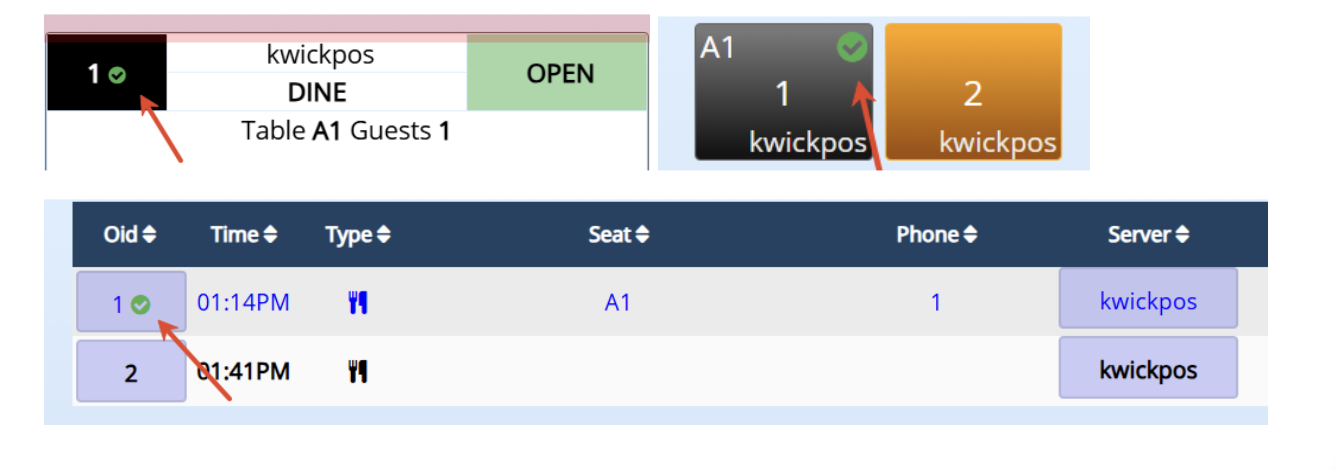
- In the new version, when KDS orders are marked as completed, a green check mark will appear on the order preview. Configure at Setup > Orders > KDS > KDS Sent Notification When Food Is Ready. [Ticket #250764]
- In the new version, a setting has been added to hide the Combine option when Permanent Combine is disabled. Configure at Setup > Orders > Misc > Disable Combine When Do Combine Pay.
- In the previous version, when paying fully in cash, the cash tender label showed “Partial Charge”, which was confusing. When paying partially, the remaining amount was labeled as “Change”. In the new version, “Partial Charge” is renamed to “Total Amount”, and “Change” is renamed to “Balance” for partial payments. [Ticket #145749]
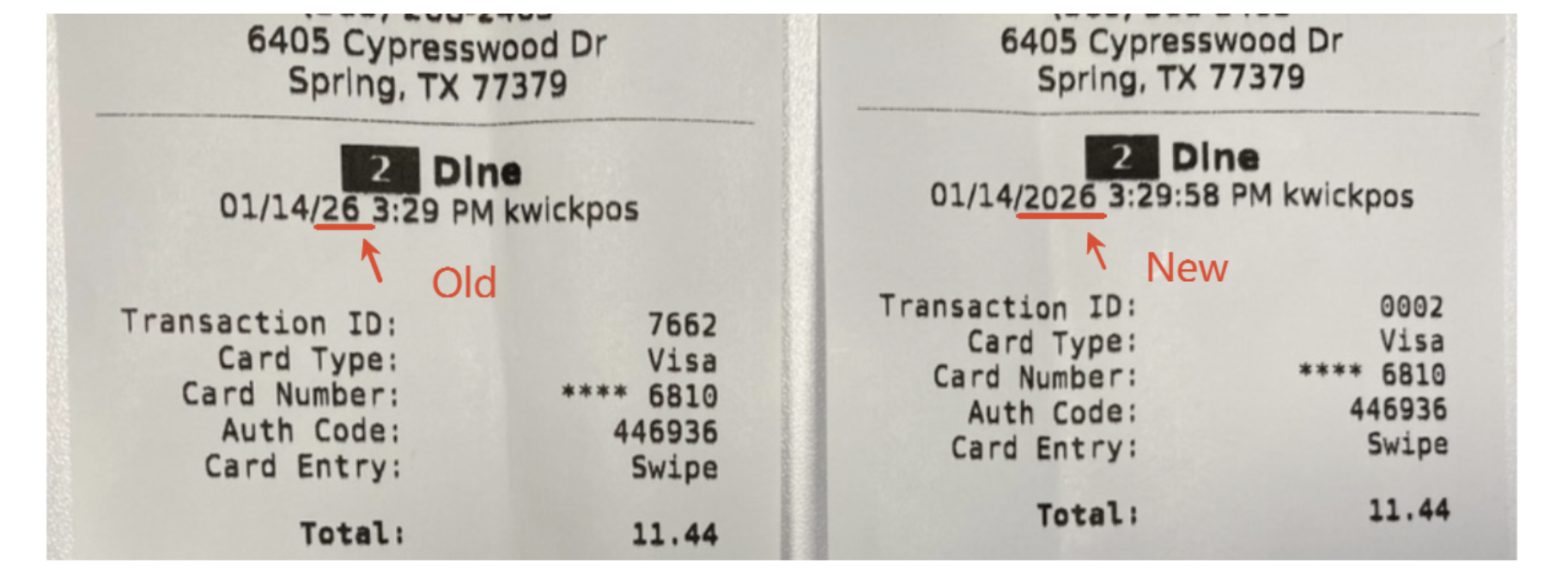
- In the new version, if Advanced > Print Year is enabled, the credit card receipt will print the full year (e.g., 1/5/2026 instead of 1/5/26). [Ticket #254593]
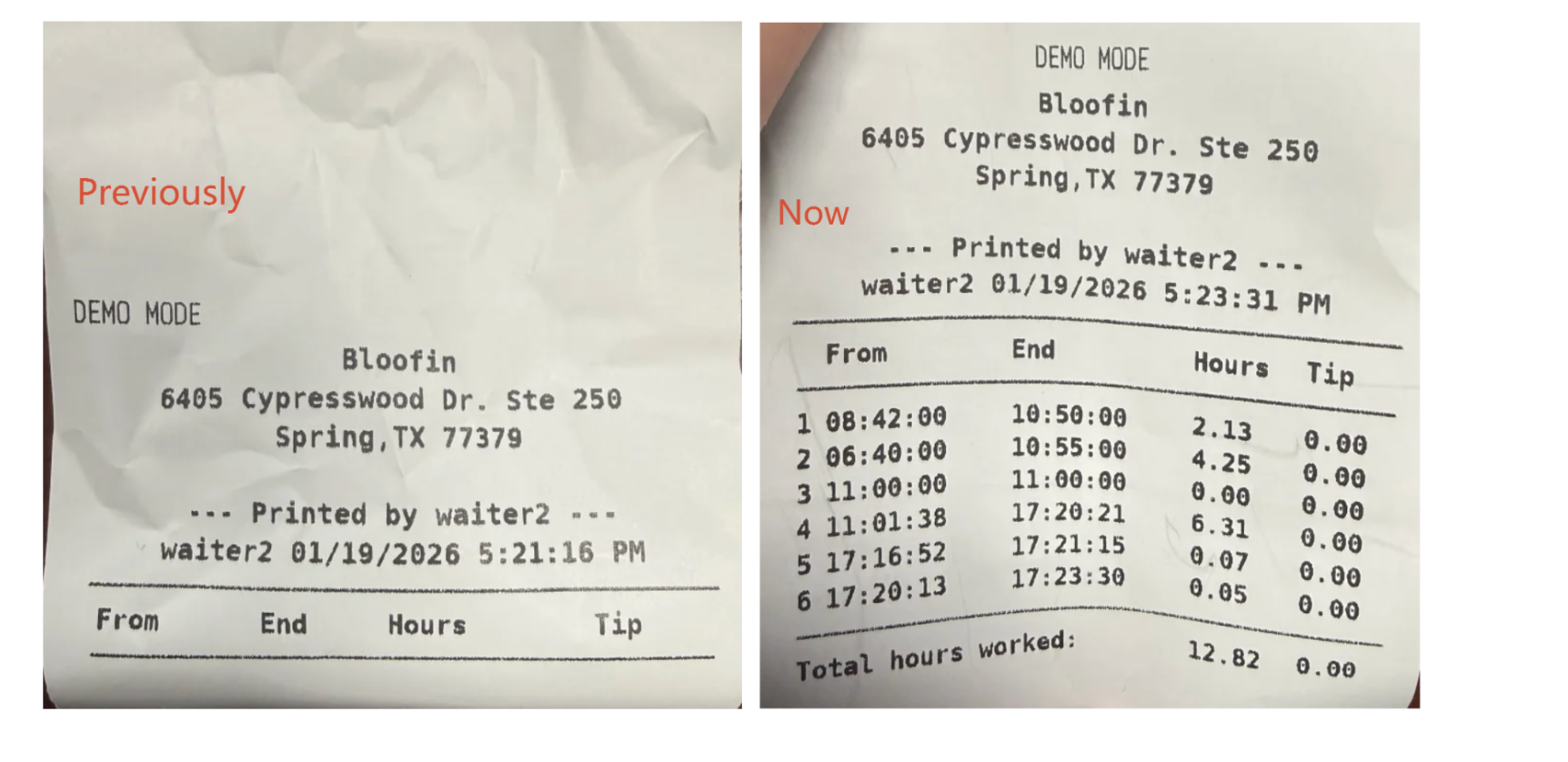
- In the old version, if a user clocked in, an end close was performed (starting a new shift), and the user clocked out afterward, the printed Clock Out Report would be empty. This issue has been fixed in the new version.[Ticket #254938]
- In the previous version, when a cashier attempted to pay with cash or check and then canceled the payment to switch to another payment method, clicking Cancel would cause the system to display a different order instead of the intended one. This occurred when a second display with signature was enabled. This issue has been fixed in the new version. [Ticket #246225]
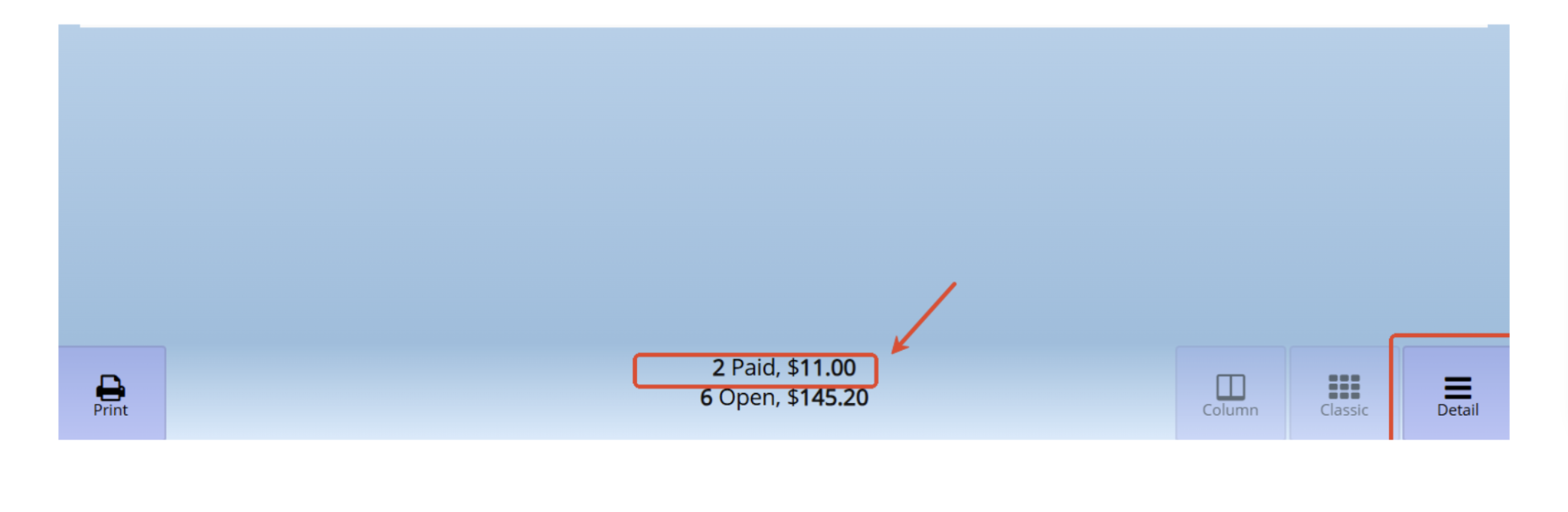
- In the previous version, the Recall Orders > Detail page showed the grand total including the convenience fee, while the order history viewed by date excluded the convenience fee. In the new version, convenience fees are consistently excluded in all views. [Ticket #255346]
Other:
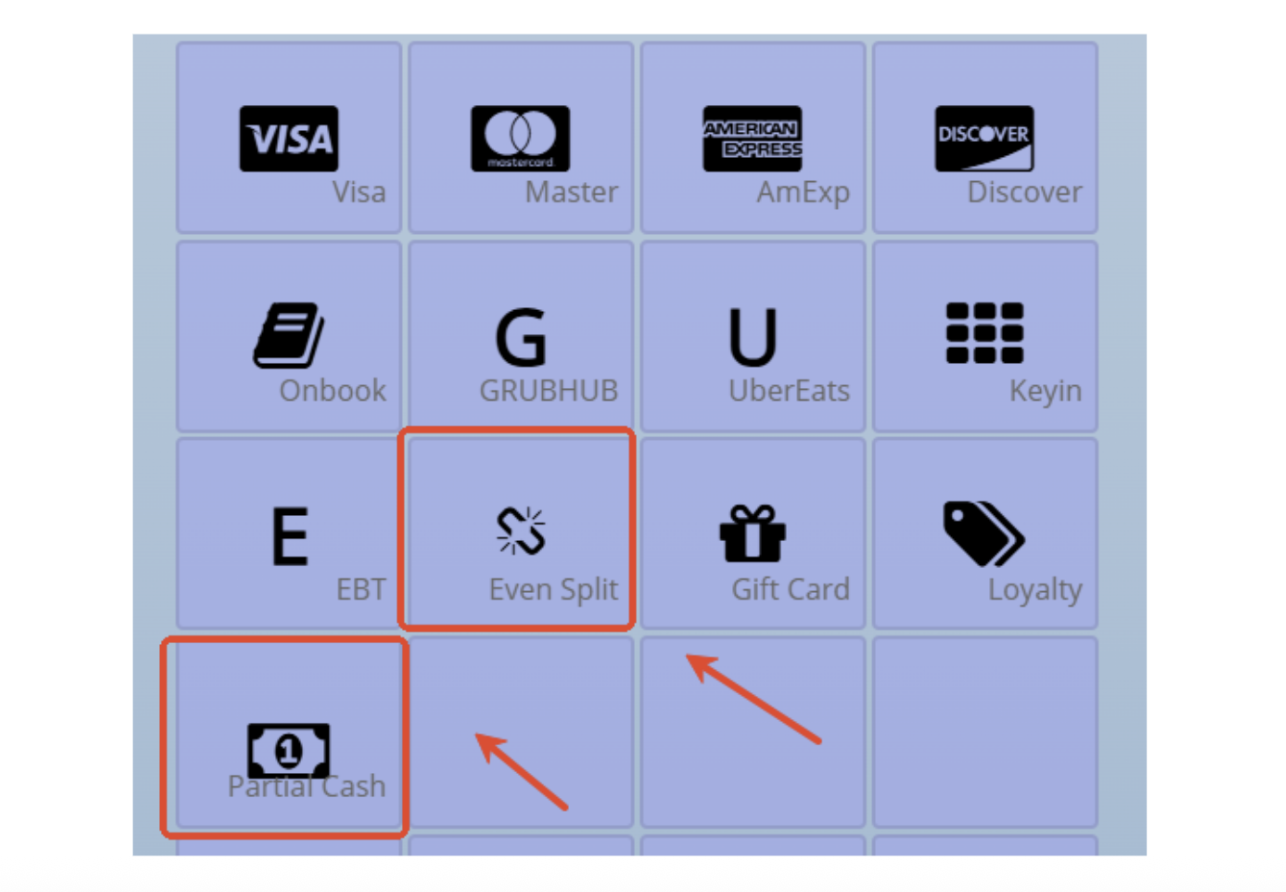
- In the new version, new settings were added to control whether to show the “Even Split” and “Partial Cash” buttons on the payment page. Configure at Setup > Misc > Hide Even Split at Payment Page and Hide Partial Cash at Payment Page. [Ticket #253887]
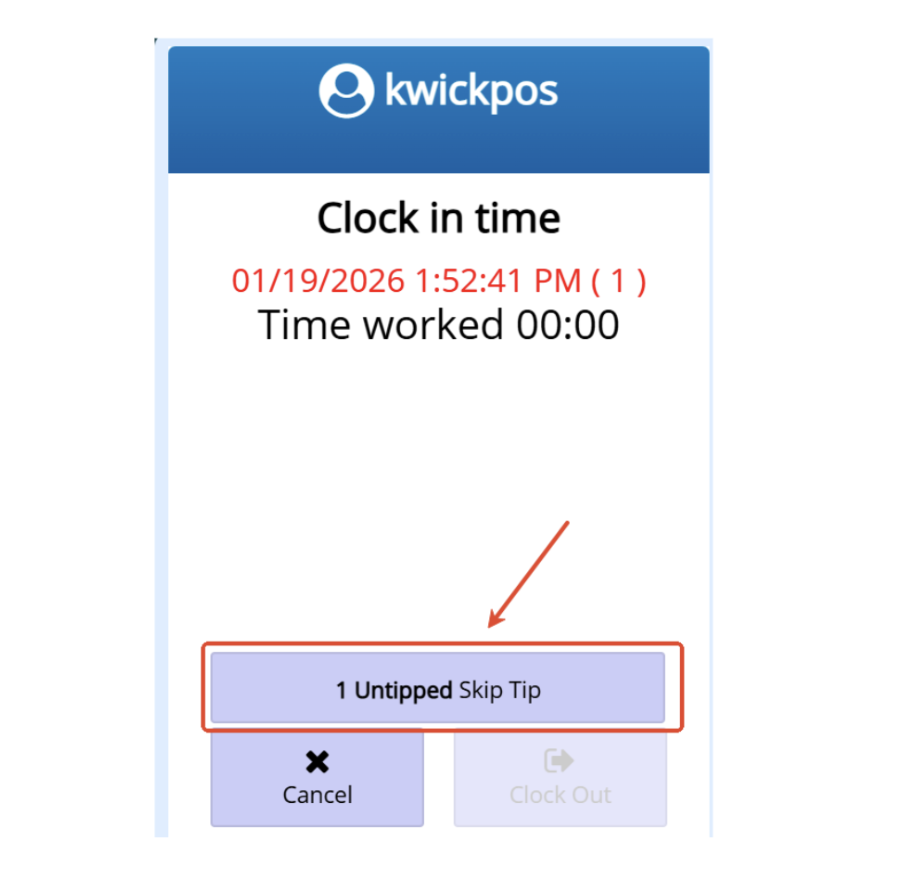
- In the new version, a setting was added to control whether to show the “Untipped” reminder when clocking out. Configure at Apps > Clock In > Hide Tip Reminder When Clock Out. [Ticket #253368]
- In the new version, we added a feature which can be enabled under Setup > Tips > Tip Pool to calculate tip pool sharing based on employees’ clock in/out time. When enabled, only orders created or changed while an employee is clocked in will be included in the tip pool distribution for employees within the same tip group. Note: Advanced > General > Tip pool needs to be enabled in order to use this function.
- In the old version, role permissions did not apply correctly when adding a new user. Even if the permissions (e.g. clockin, ugiftbonus, etc) were enabled for a role, they were not automatically assigned to newly created users under that role. This issue has been fixed in the new version.[Ticket #253385]
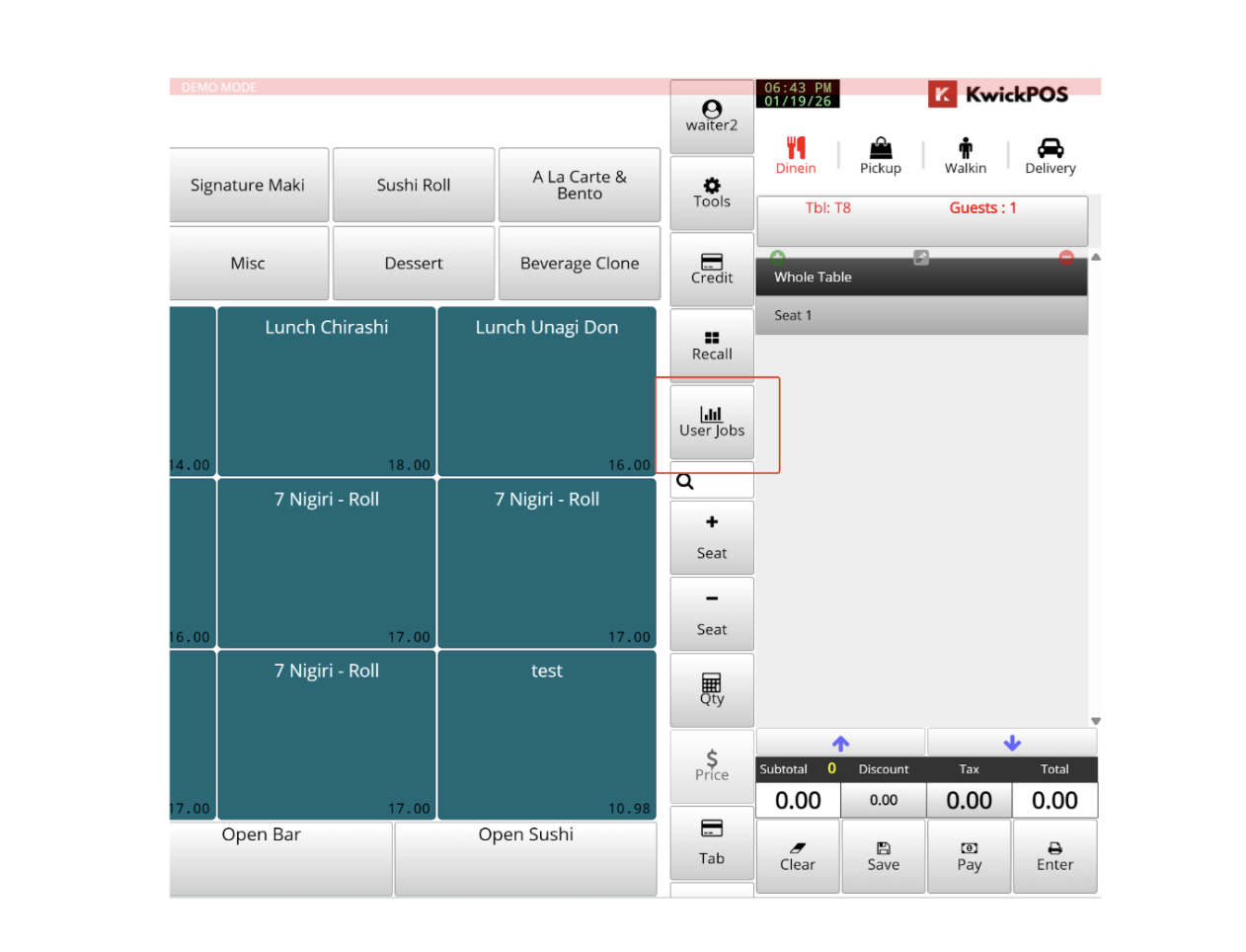
- In the new version, two new Job Tool settings were added: Advance > Rule & Credit > Job Tool at Side allows the Job Tool to appear on the cart (item selection) toolbar, and Advance > Rule & Credit > Job Tool Access controls whether the Job Tool is visible to all roles or managers only.
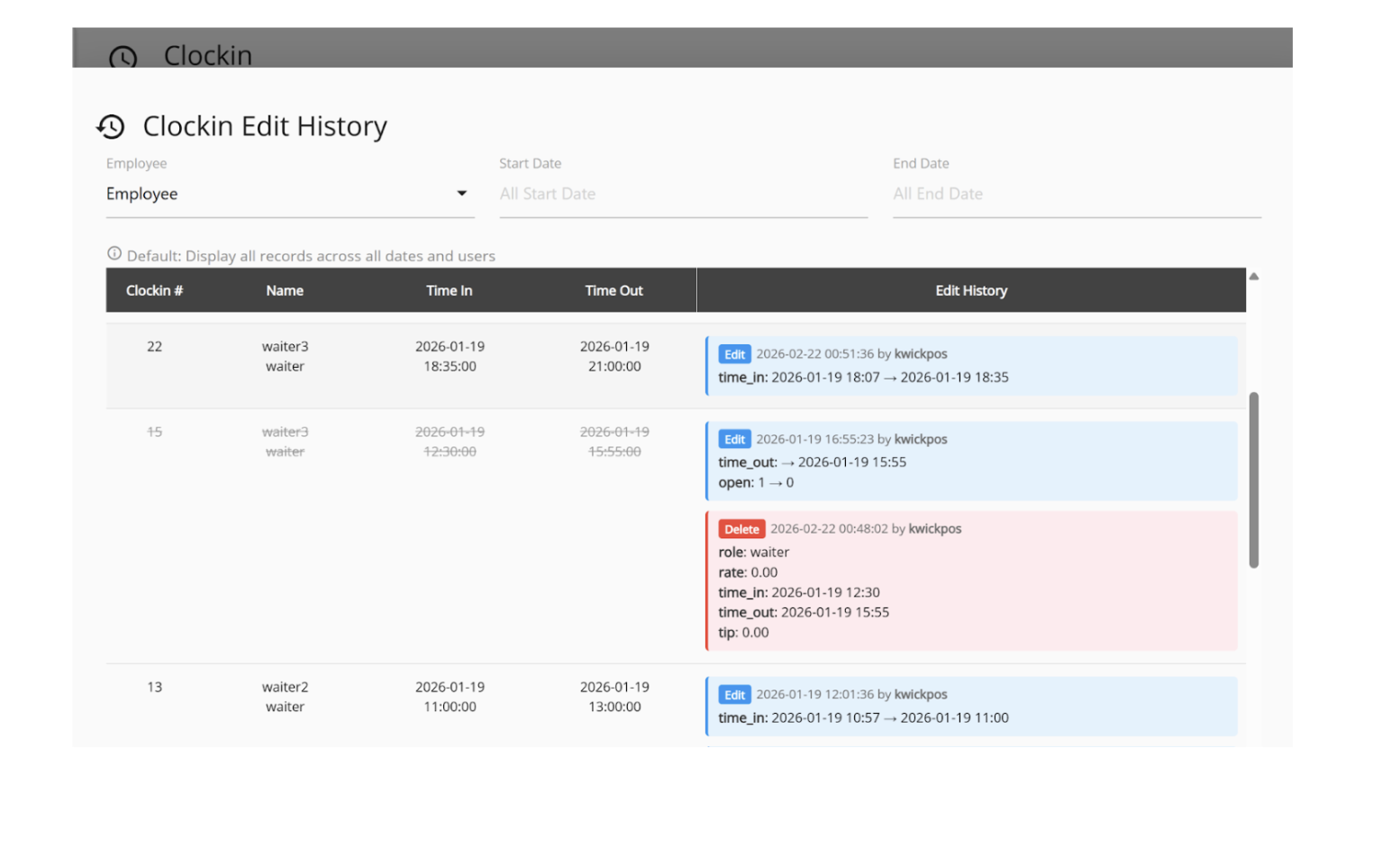
- In the new version, a new Edit History view was added to the Clock In report, allowing owner users to see all edited and deleted time records. Edited times are displayed in HH:MM format (minute precision only, without seconds). Access it at Report > Clock In > View Edit History.
- In the new version, a setting was added so that items added by right-clicking menu items or by scanning can be configured to not automatically apply tax and not be selected for any kitchen printer; configure this at Setup > Orders > Misc > Disable auto kitchen print and tax for scan-added and right-click added items.
- In the old version, lunch item availability for scheduled orders was incorrect -- after lunch end time but within business hours, if customers wanted to order lunch items for a future day and to pick up during the lunch time, the system did not allow them to order. And also outside business hours, scheduled orders could still select lunch items regardless of the scheduled time. This issue has been fixed in the new version.[Ticket #217670]
- In the old version, for QR table ordering, when a 10-minute order frequency limit was enabled, clicking the Checkout button while placing another order on the same table would not respond. This issue has been fixed in the new version.[Ticket #242051]
- In the new version, Online Menu and QR Ordering now can follow the POS “Sold Out” setting. When an item is marked as sold out in POS, it will be hidden and no longer displayed on the online menu or QR ordering.
Still need a hand?
Our 24/7 support team can walk you through it.
Call (888) 355-6996