
Access the Online Order Portal
POS BasicsTo open your Online Order Portal:
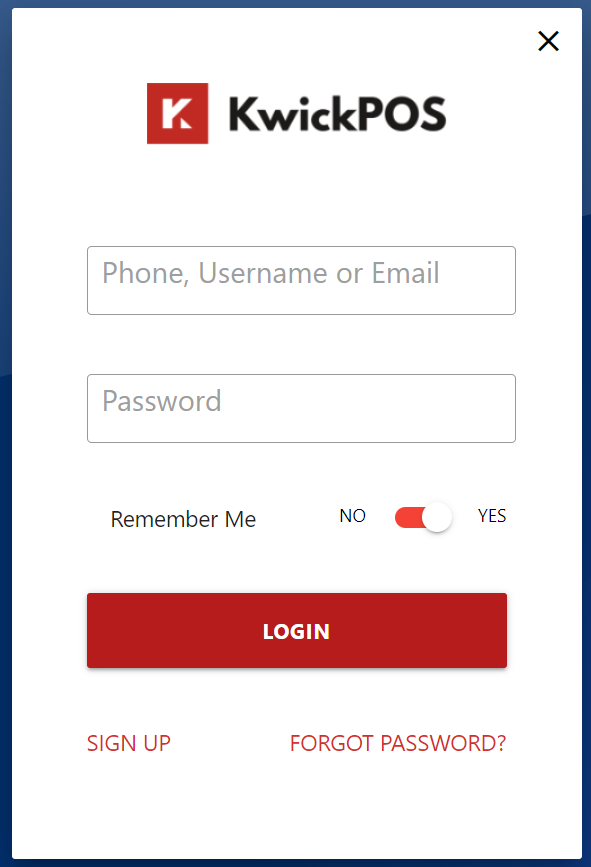
- Go to Kwickpos.com
- Sign In (Username, Password)
3. Select Site name
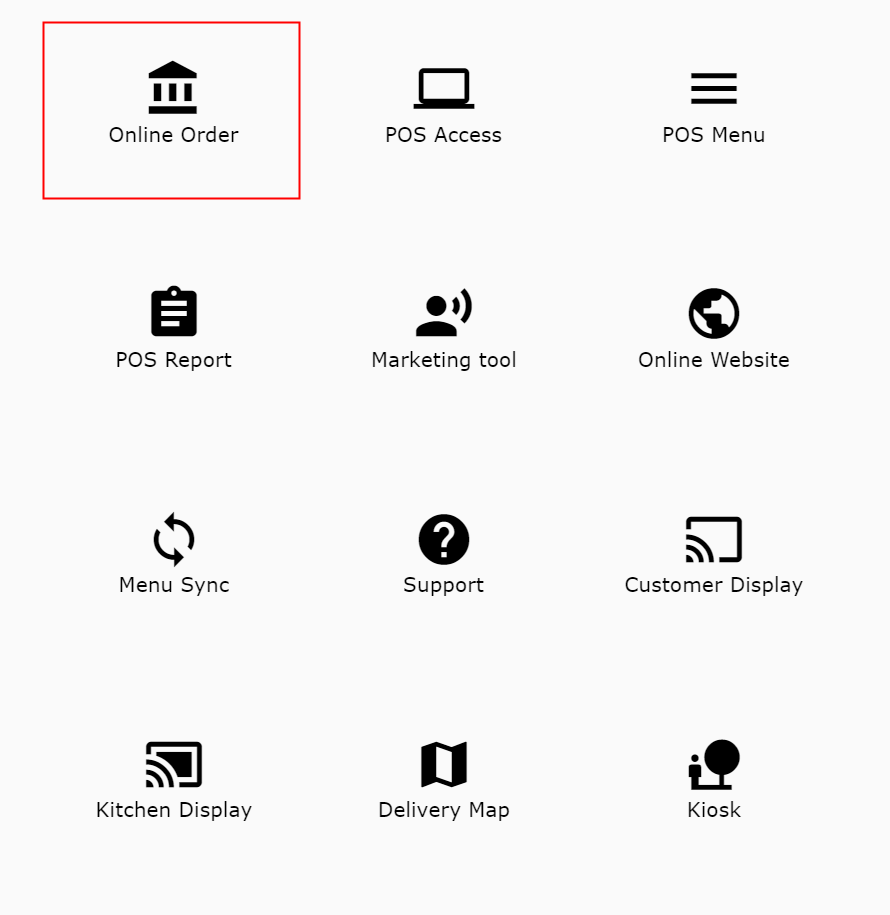
4. Select Online Order
4. Select Online Order
Managing your Online Orders
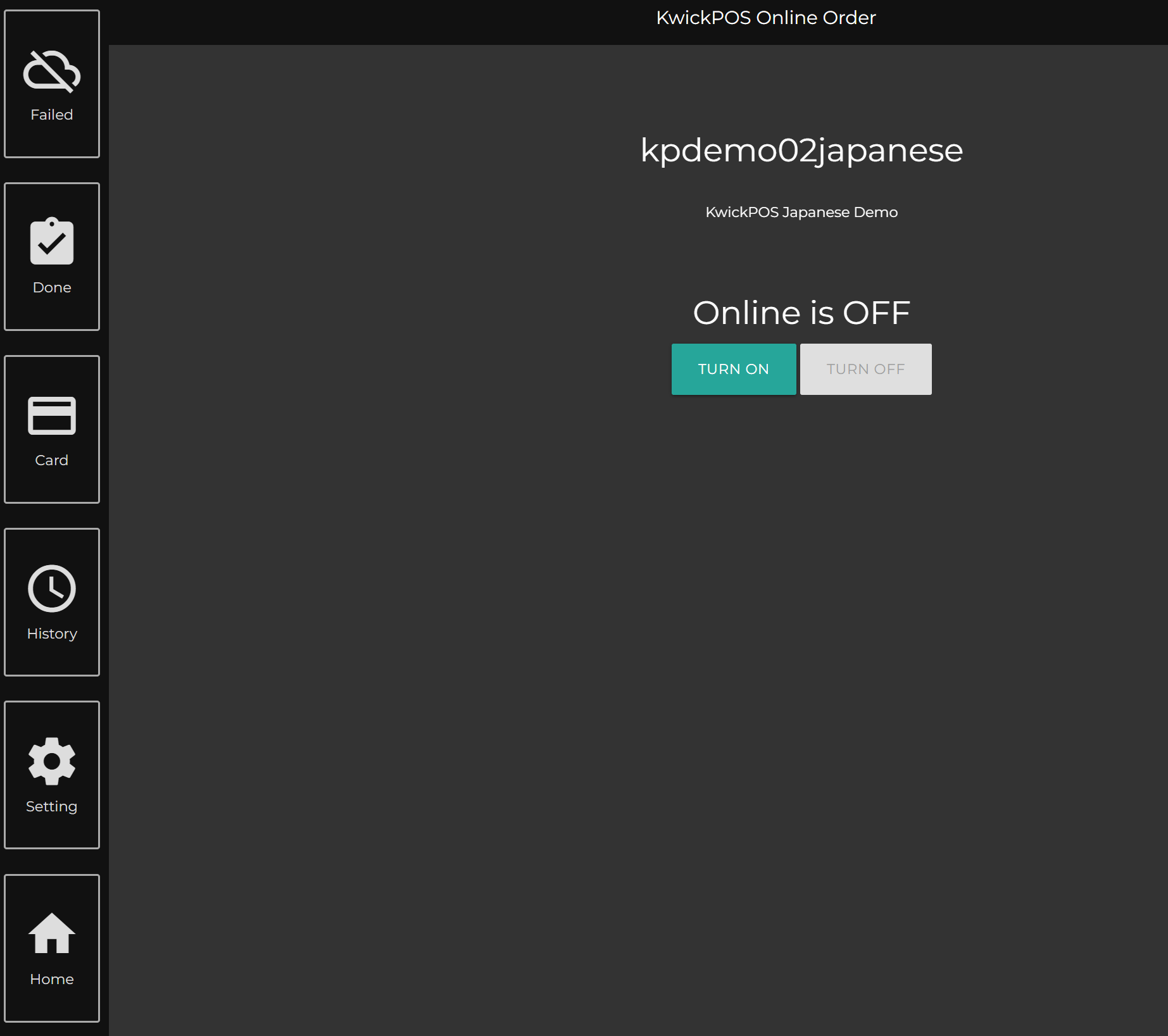
Turn On/Off Online Ordering
- In the Online Order Portal, you can Turn On & Turn Off online ordering.
Checking Failed Online Orders
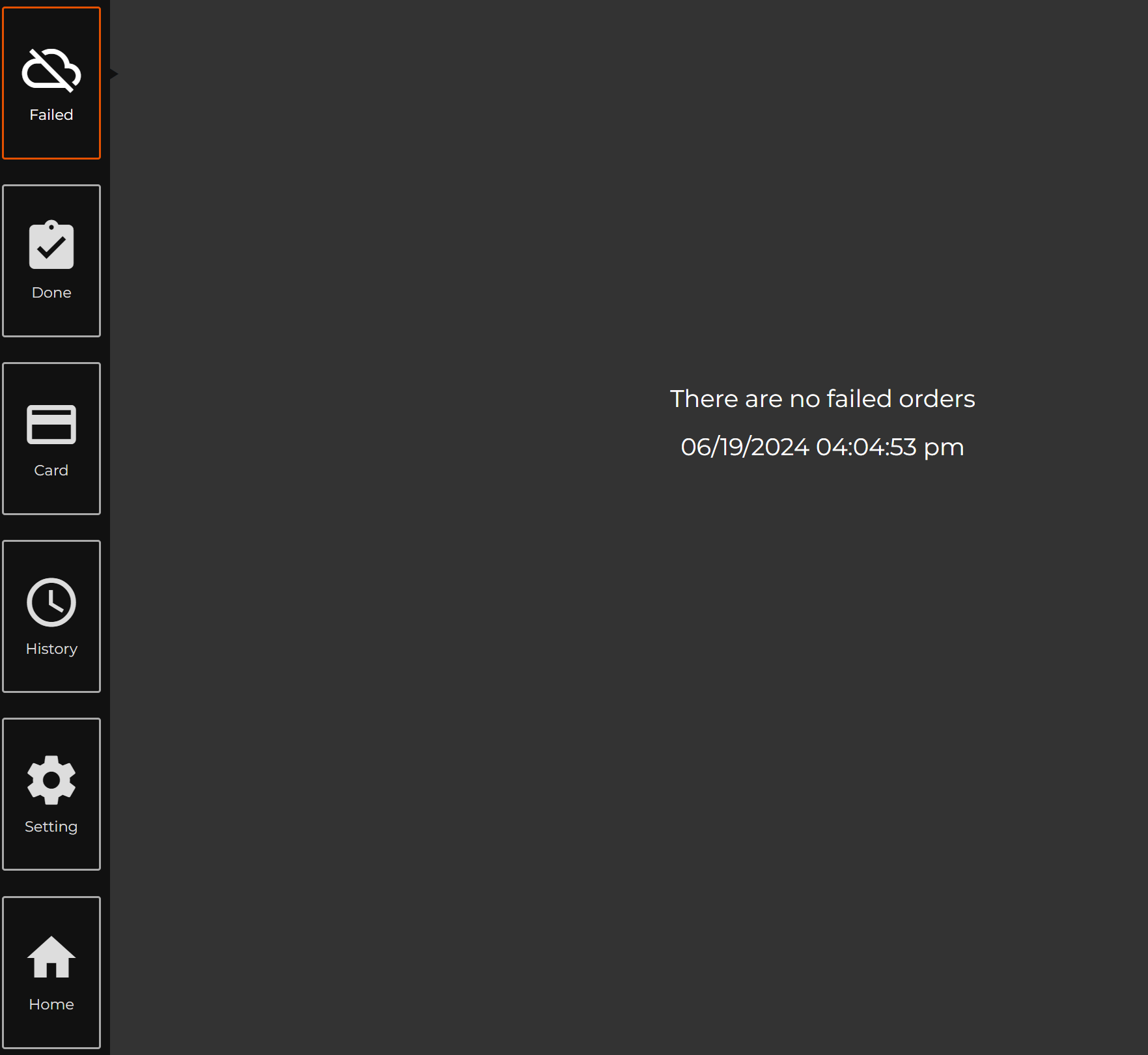
- If you select Failed, you will be able to see if there are any Online Orders that were not able to go through.
Checking Finished Online Orders
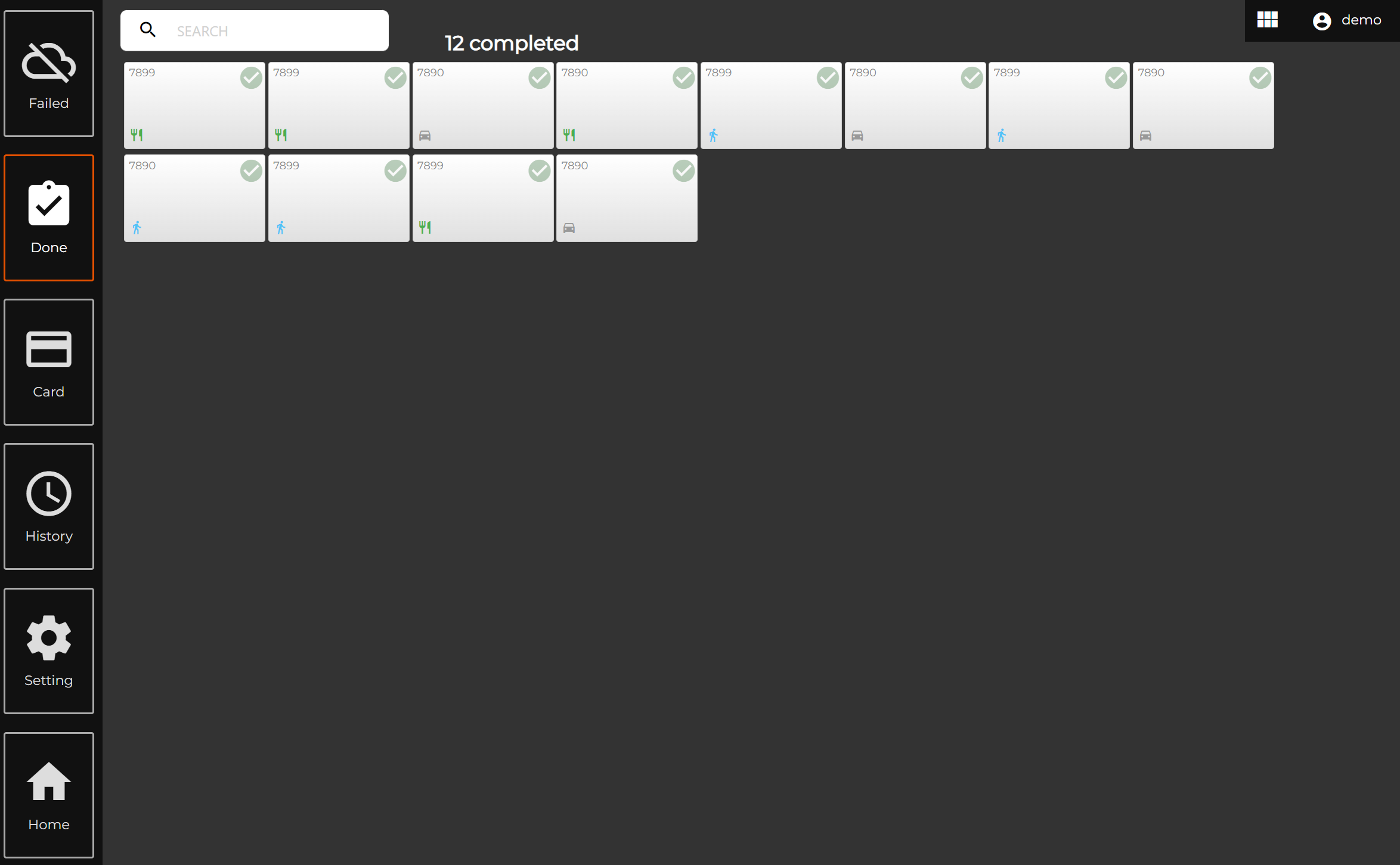
- If you select Done, you will be able to see all finished Online Orders.
Checking Online Order History
- If you select History, you will be able to see the history of all Online Orders. If you select an order, you will see the order's summary and have different options to choose if needed.
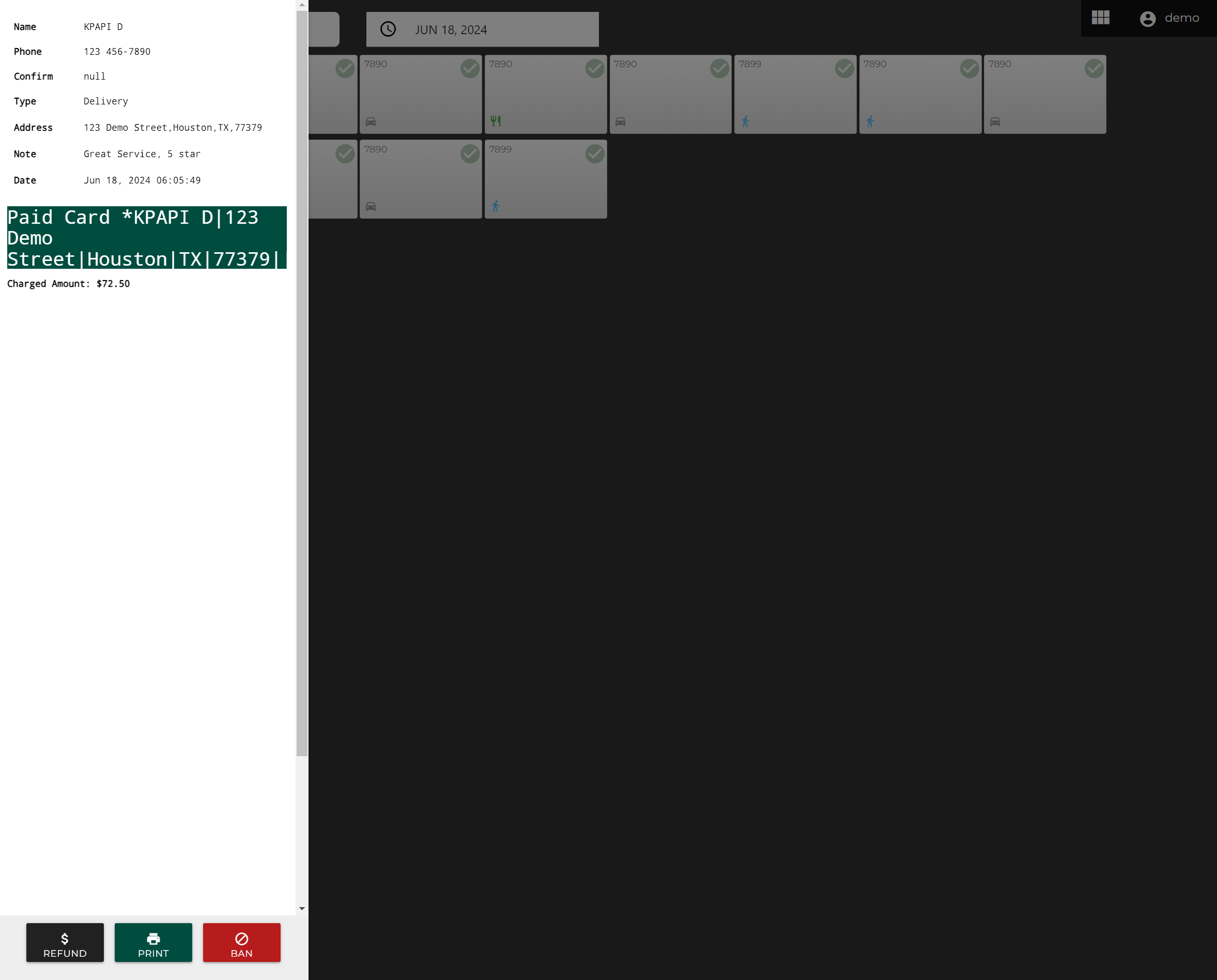
2. If the order needs to be refunded, select Refund.
3. If the order needs to be reprinted, select Print.
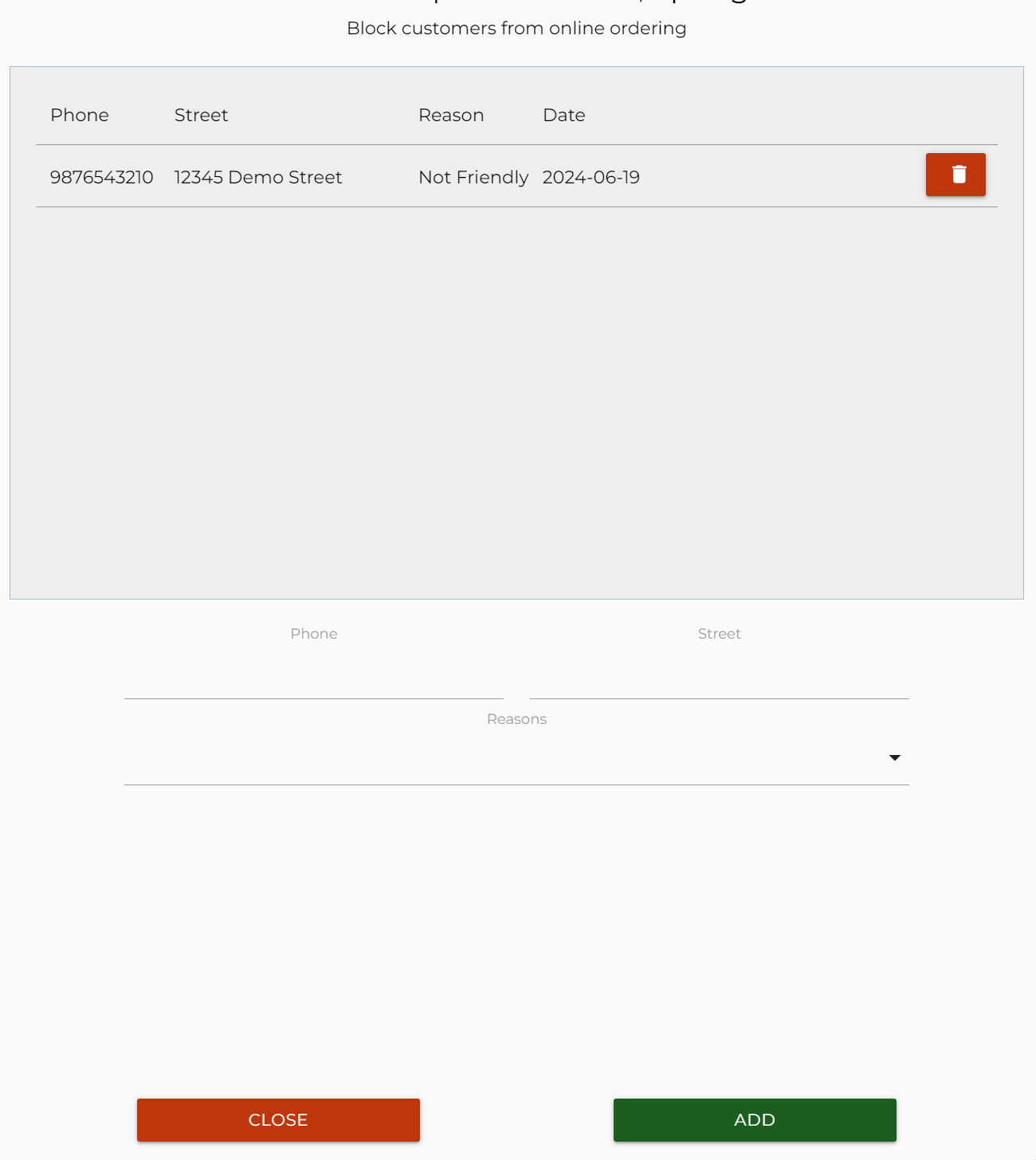
4. If you would like to ban the customer, select Ban.
- You can select a reason for blocking the customer from using online ordering.
Online Order Settings
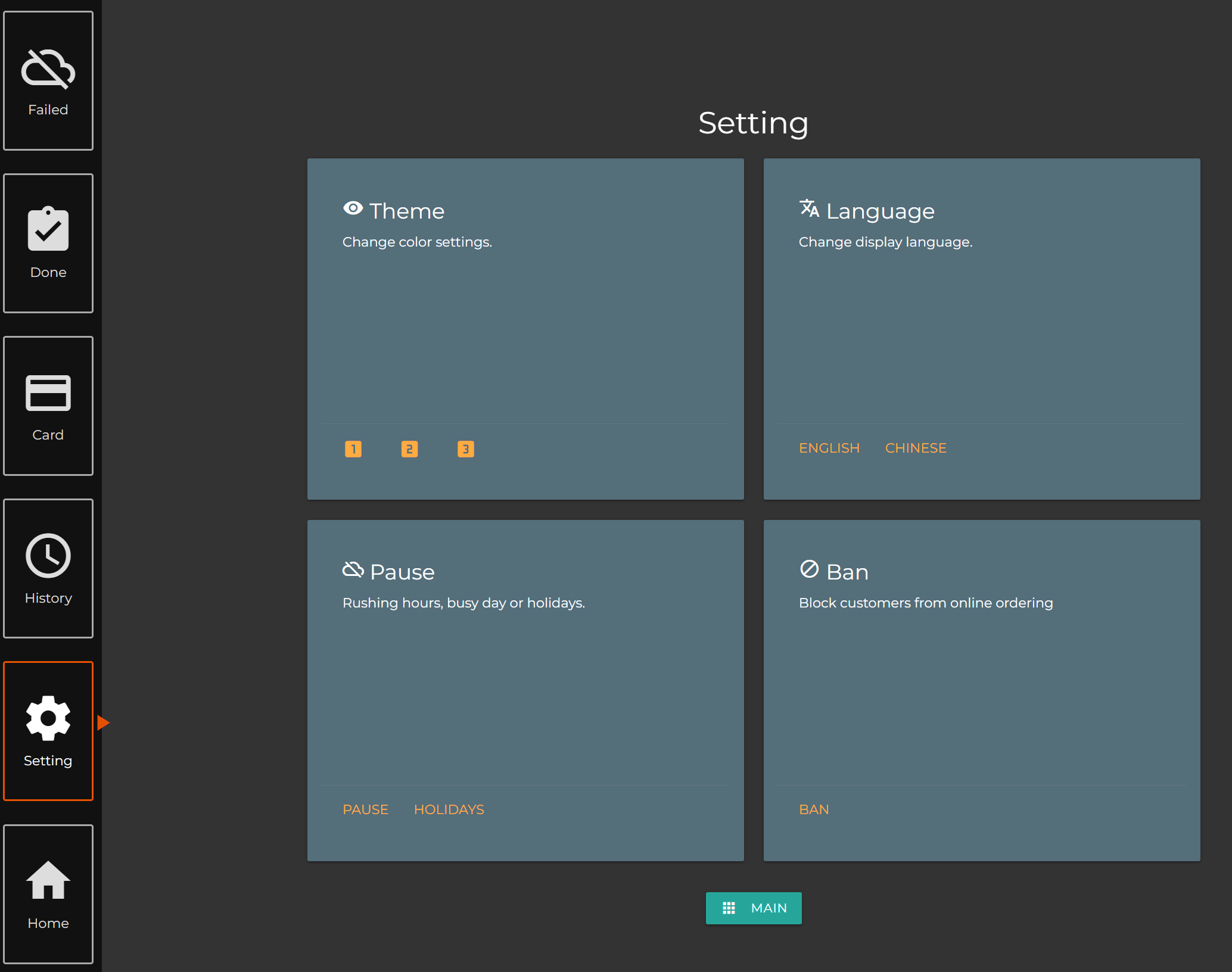
- You will be able to change the Theme by selecting numbers 1 - 3.
- You will be able to change the display Language based off the second language you choose in the POS settings.
- You will be able to Pause Online Orders in the moment.
- You will be able to Turn Off Online Ordering on specific Holidays.
Still need a hand?
Our 24/7 support team can walk you through it.
Call (888) 355-6996