
Kitchen Display Setup
Hardware & Network- Kitchen Display: Shows orders sent to the kitchen
- Enable Kitchen Display:
- New Back Office: Tools->Back Office->Setup->Terminal->Edit Terminal->Terminal Mode->Kitchen Display->Save
- Advanced Back Office: Tools->Back Office->Advanced->System->Terminal->Select Terminal IP Address->Mode->Kitchen->Update
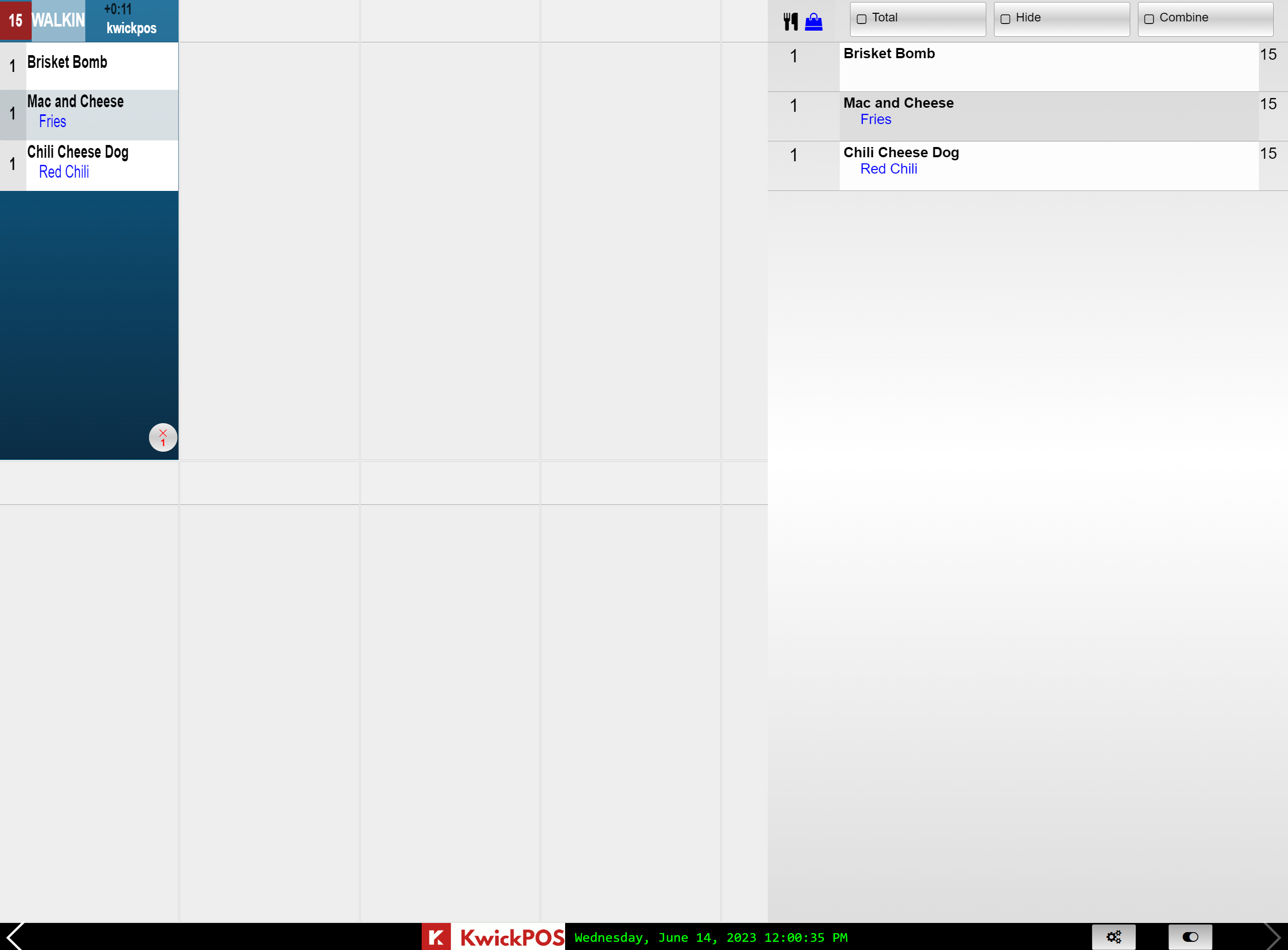
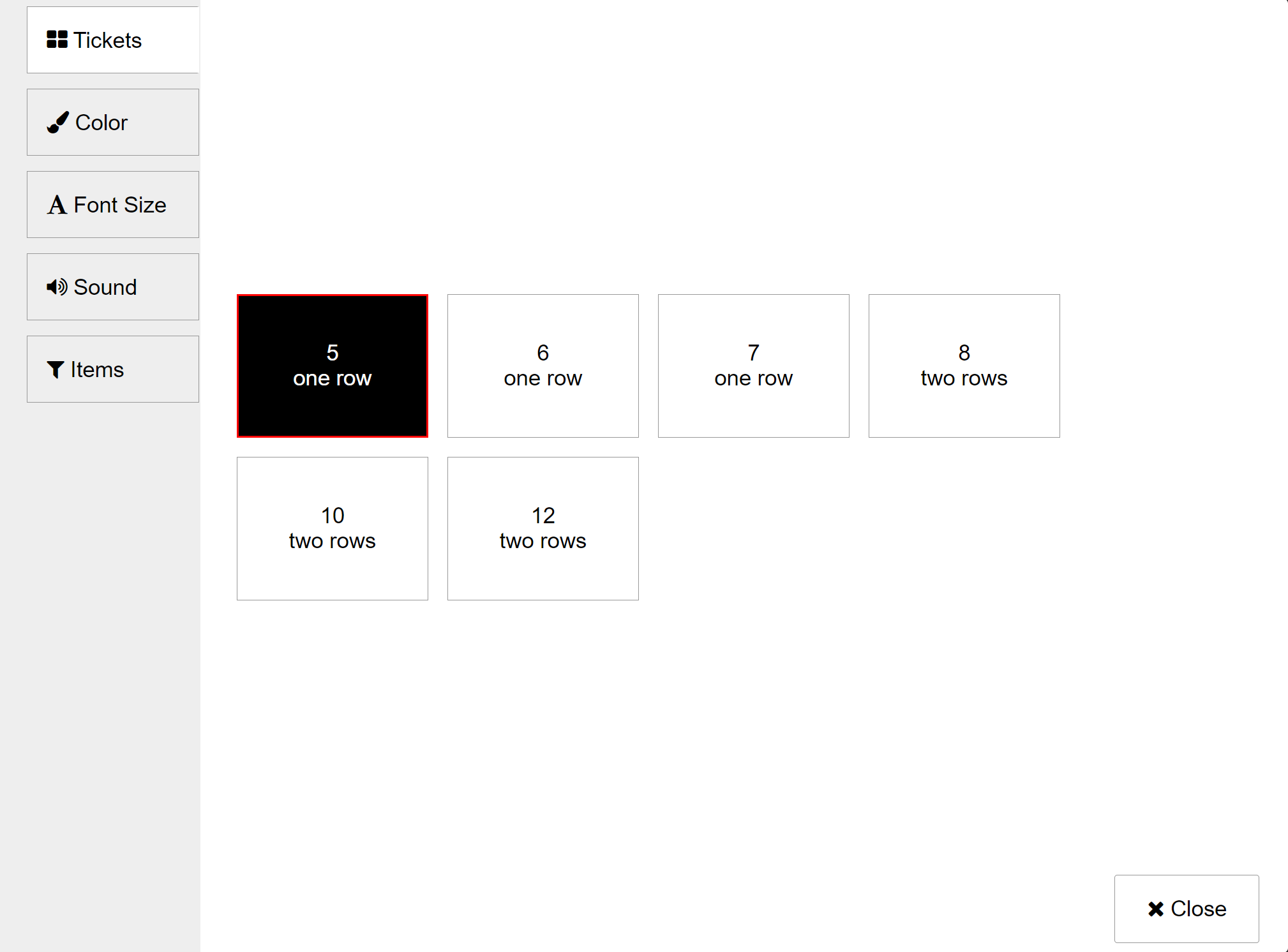
Kitchen Display Settings
- Layout:
- Top of Ticket:
- Red Square- Order Number
- Order Type
- Time Order is on screen
- User who submitted order
- Middle of Ticket:
- Number of Item
- Black- Item
- Blue- Modifier
- Can check off items individually when finished
- Bottom of Ticket:
- Red X- Removes ticket when finished with whole order
- Bottom of Screen:
- KwickPOS Logo- When touched, will return to POS Home Screen
- Today's Date & Time
- Settings- Opens settings
- Tab- Shows orders on the side
Still need a hand?
Our 24/7 support team can walk you through it.
Call (888) 355-6996