
Customer Display Setup
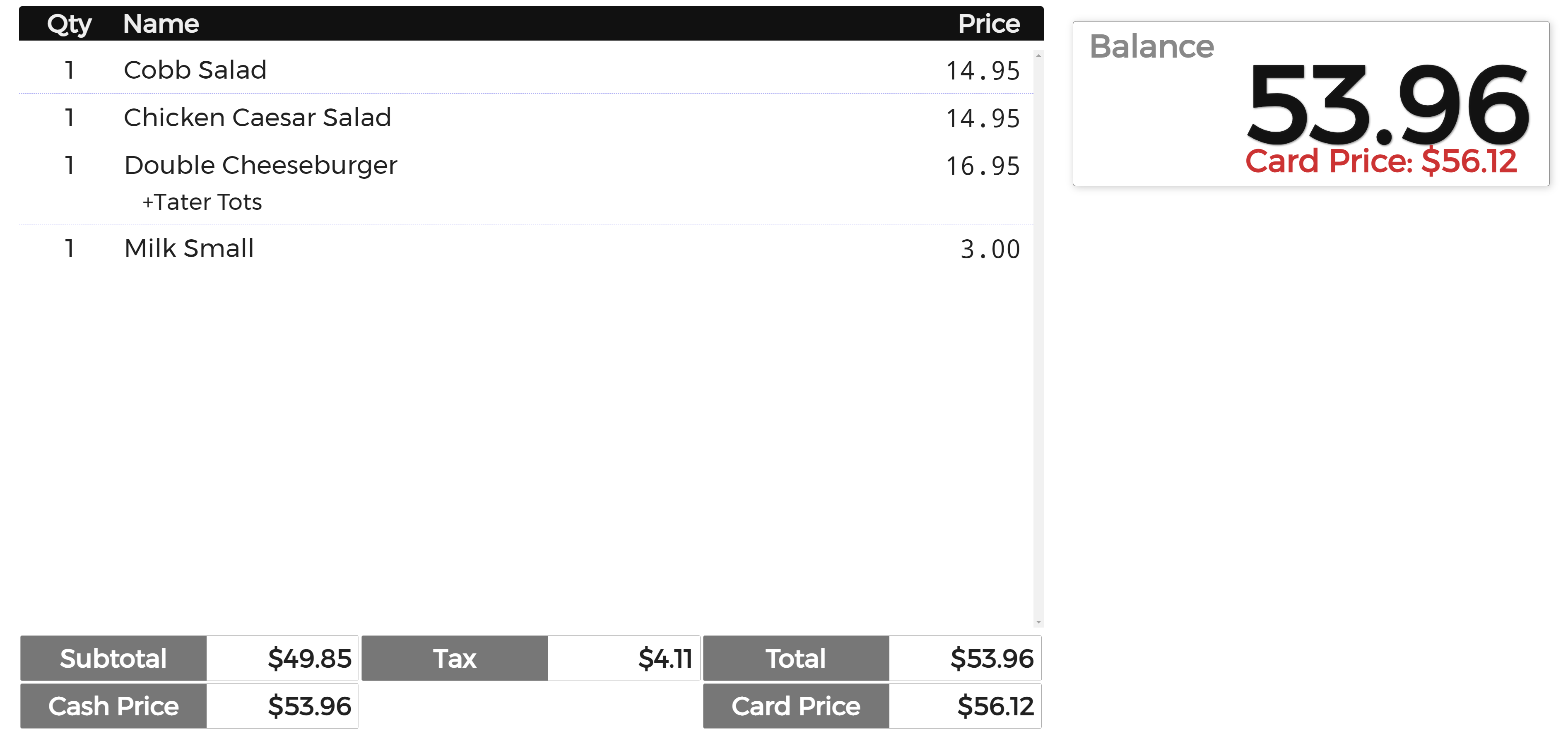
Guides & How-Tos- Customer Display: Shows what the customer is ordering, can add tips, and sign on the screen at checkout
- Enable Customer Display:
- New Back Office: Tools->Back Office->Setup->Terminal->Edit Terminal->Customer Display->Select Display->Save
- Advanced Back Office: Tools->Back Office->Advanced->System->Terminal->Select Terminal IP Address->Display->Select Display->Update
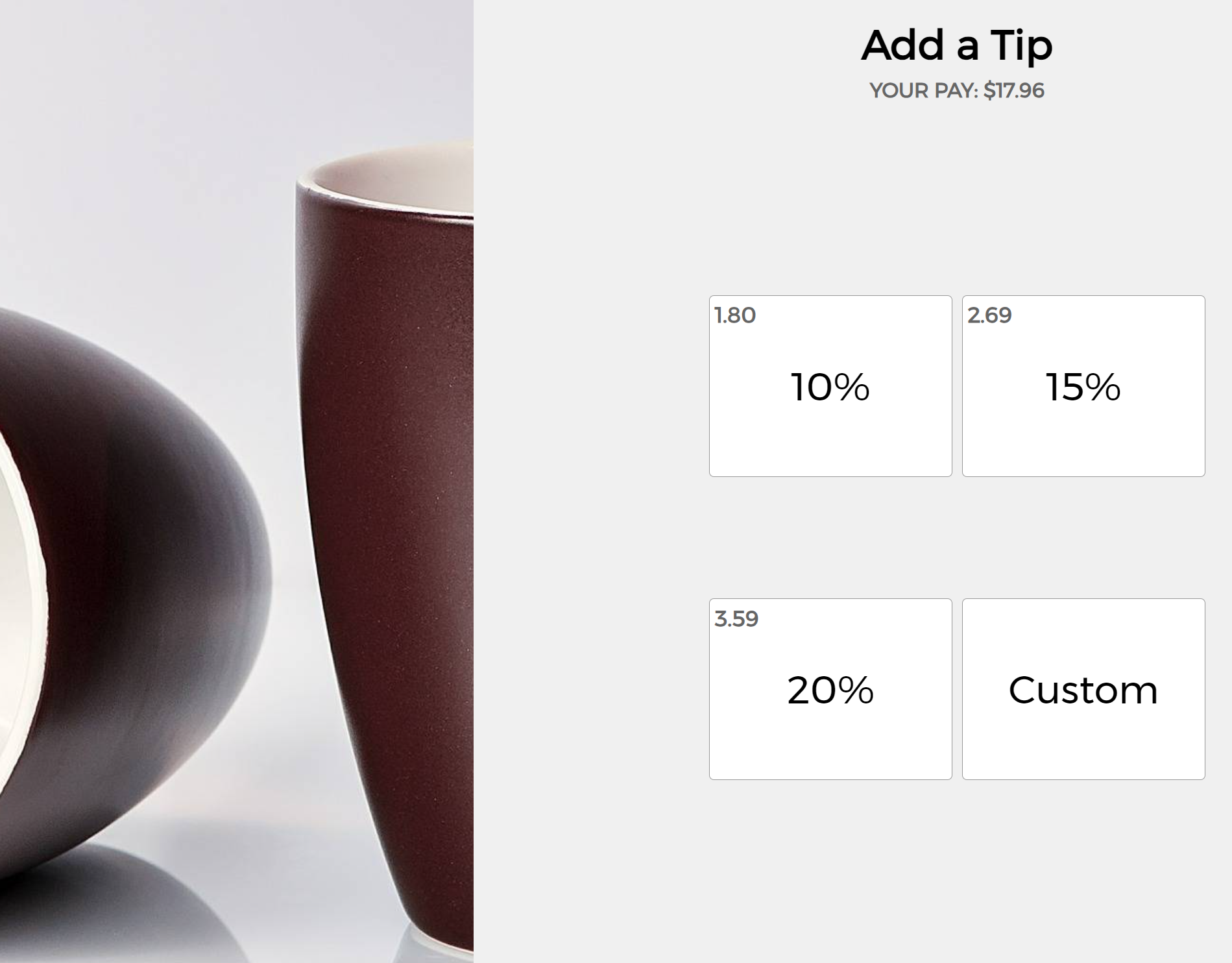
Tips On Screen
- Enable Tips:
- First check if the credit card machine is set to Pax for Credit Processor type(Not Pax Tip).
- Advanced Back Office: Tools->Back Office->Advanced->Tip table print->Set Preset Tip amounts(ex: 10%, 15%, 20%)->Add 1 to space next to Tip table print->Save
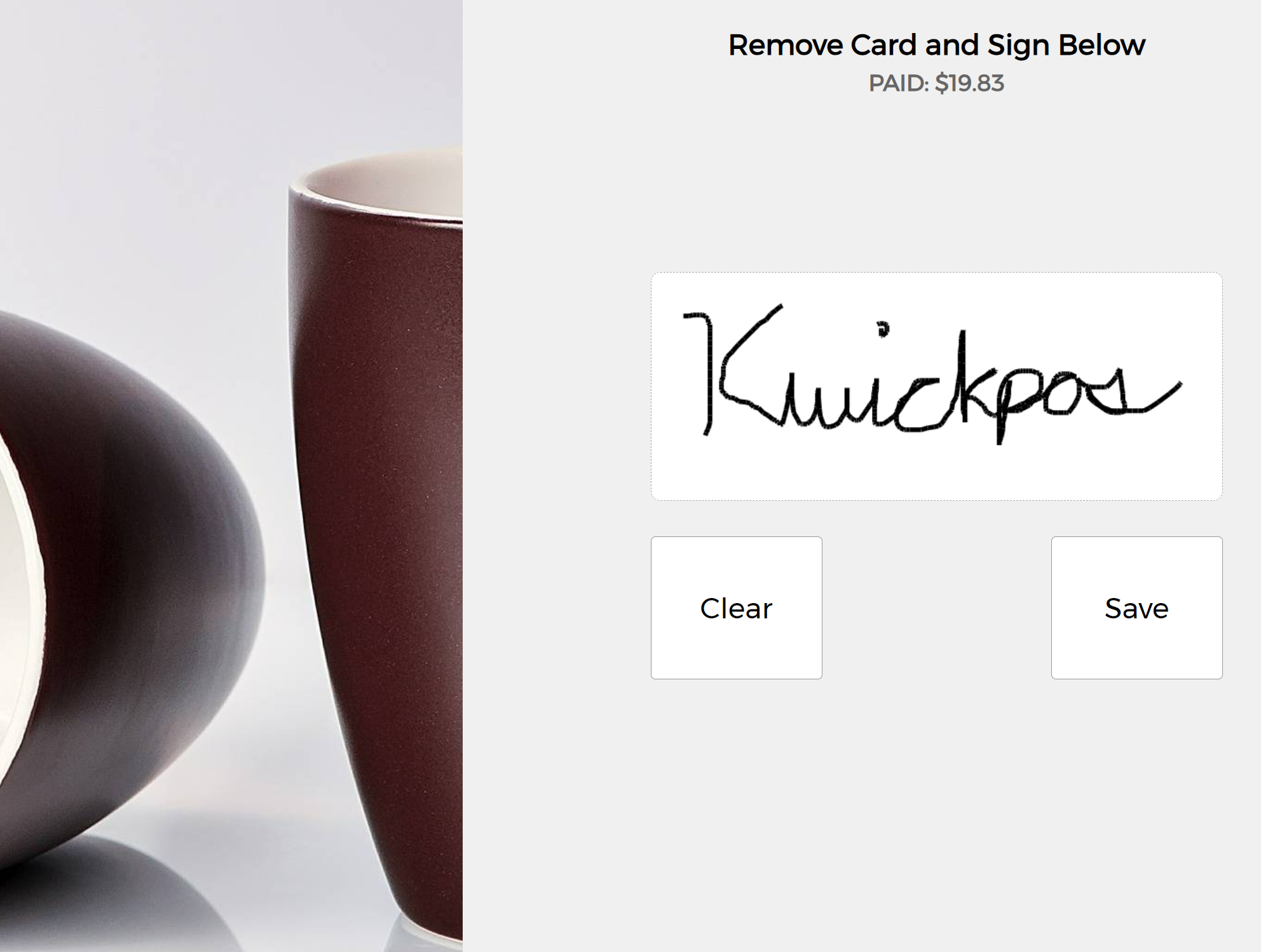
Sign On Screen
- Enable Signature:
- New Back Office: Tools->Back Office->Setup->Terminal->Edit Terminal->Check Got Signature feature->Save
- Advanced Back Office: Tools->Back Office->Advanced->System->Terminal->Select Terminal IP Address->Signature->Yes->Update
Still need a hand?
Our 24/7 support team can walk you through it.
Call (888) 355-6996