
Categories
Guides & How-Tos- Categories: Groups that contain certain items
- Adding a new category:
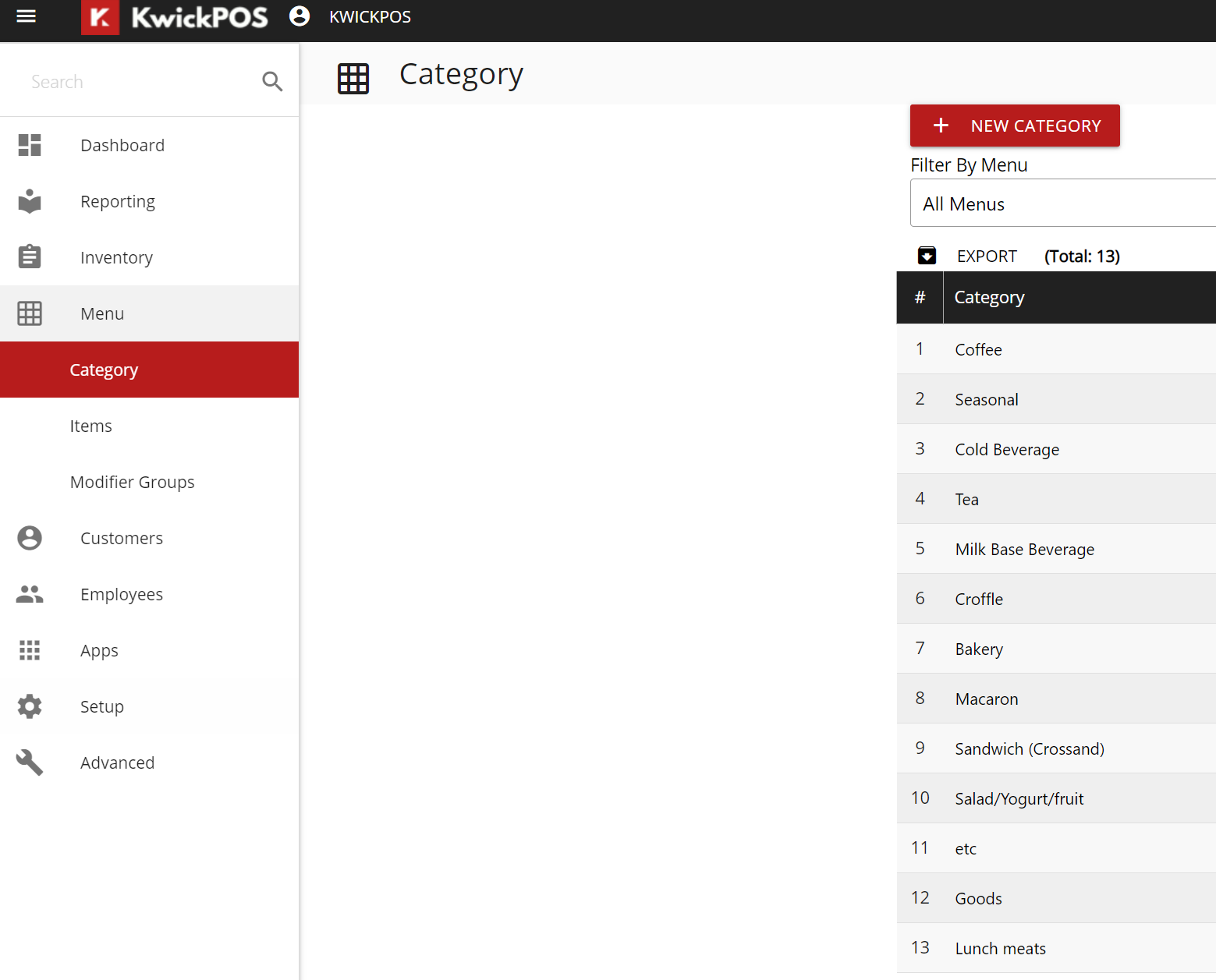
- New Back Office: Tools->Back Office->Menu->Category->New Category
- Advanced Back Office: Tools->Back Office->Advanced->Menu->Add Category
- Live Edit: Edit the menu without going into the back office
- Tools->Back Office->Advanced->System->Rule & Credit Card->Live Edit->Yes: Enables Live Edit, No: Disables Live Edit
- Shifting Category Order:
- New Back Office: You can drag categories up or down to rearrange their order
- Advanced Back Office: Select category and use arrows to move position
- You can clone categories:
- Advanced Back Office: Tools->Back Office->Advanced->Menu->Category->Clone
Advanced Back Office Menu
- These are settings that can be accessed under Tools->Back Office->Advanced->Menu:
- Add: Used to add a new category
- Sort: Sorts the categories alphabetically
- All UpperCase: Will make all categories uppercase
- All LowerCase: Will make all categories lowercase
- Update: It will save any changes you make to the categories
- Swap Cat Language: Will change categories to second language
Still need a hand?
Our 24/7 support team can walk you through it.
Call (888) 355-6996