
Release Notes 09/30/2026
Release NotesPOS:
Orders:
- In the new version, we added an option to adjust the font size of cart items and modifiers where Merchants can increase or decrease the text size shown in the cart. Configure at: Settings > Orders > Font size of Cart items and modifiers (%, default 100). [Ticket #341092]
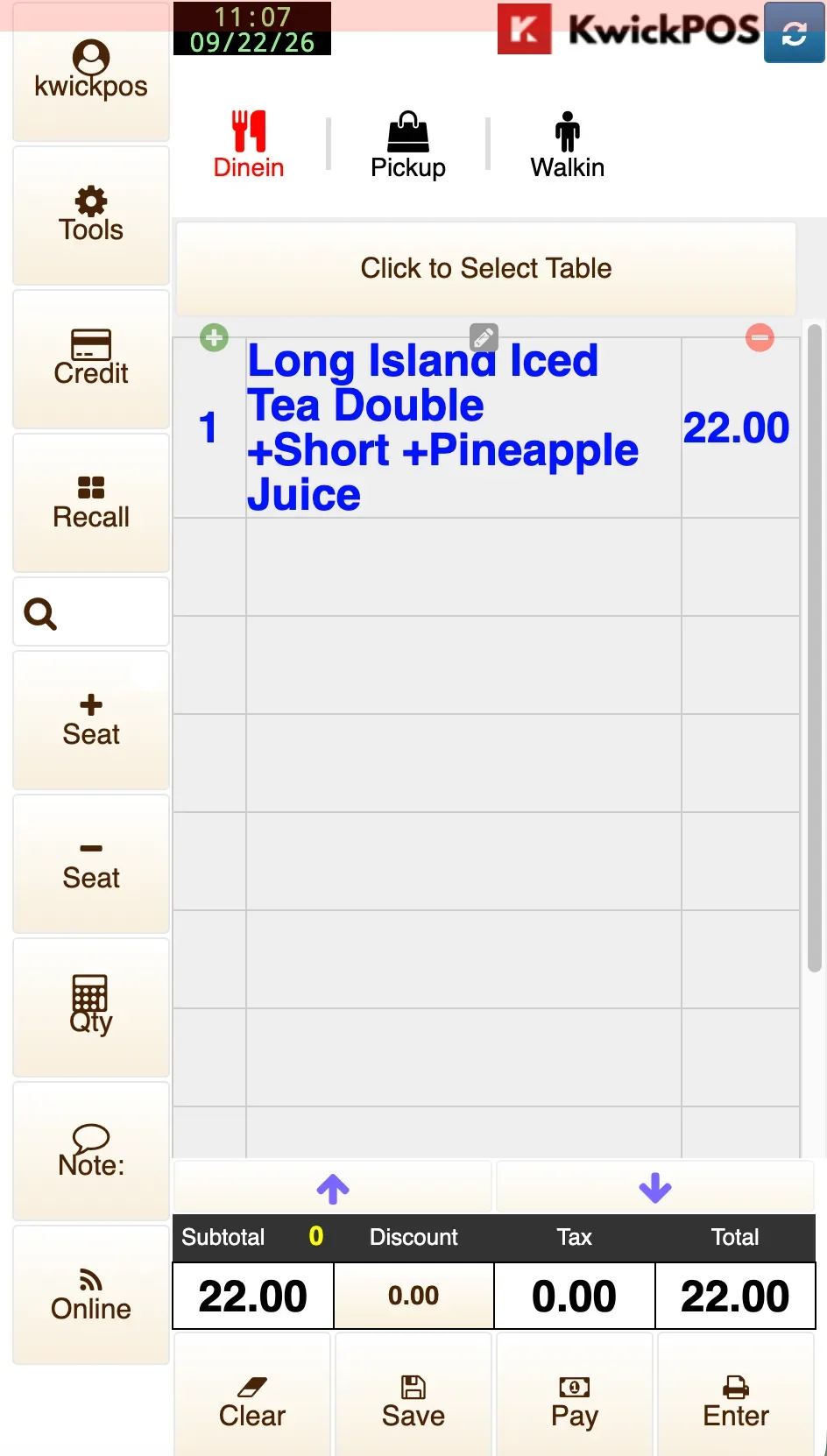
- Preset Discount Reasons can now bypass role discount percentage limits. This allows a user to use predefined discounts such as 100% coupons or employee meals although the user does not have generic 100% discount permission. Configure at: Setup > Orders > Misc > Preset discount reasons skip discount permission.[Ticket #354534]
- Previously, orders paid and entered with Paid First could fail to save if the Note contained a single quotation mark ('). In the new version, this has been fixed.
- In the new version, AYCE Item Limit Groups now support limiting custom items by Per Order Frequency. This allows the item limit to reset for each ordering window, so for each round of order, customers can order up to the configured limit multiplied by the guest count. This feature can be configured under Apps > AYCE > Item Limit Groups > Per Order Frequency and is supported in New Tablet mode only. [Ticket #354825]
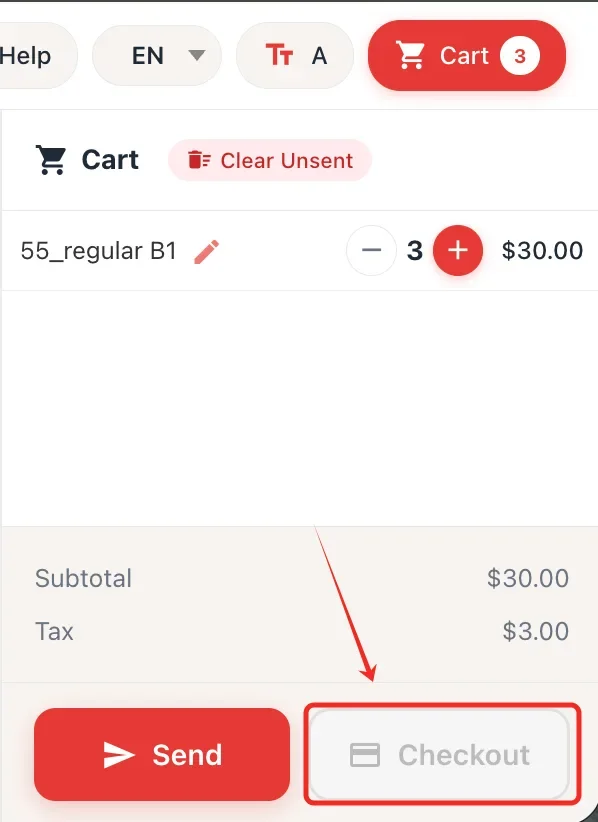
- In the new version, a new option has been added to hide the checkout button in New Tablet mode, allowing for more flexible terminal configurations. This feature can be configured under Apps > Table iPad. [Ticket #356133]
- In the previous version, when discount validation was enabled, waiters could not add a discount to the cart before the order was entered, and entering the boss/manager password would not allow the discount to go through. In the new version, this issue has been fixed. [Ticket #358034]
Print:
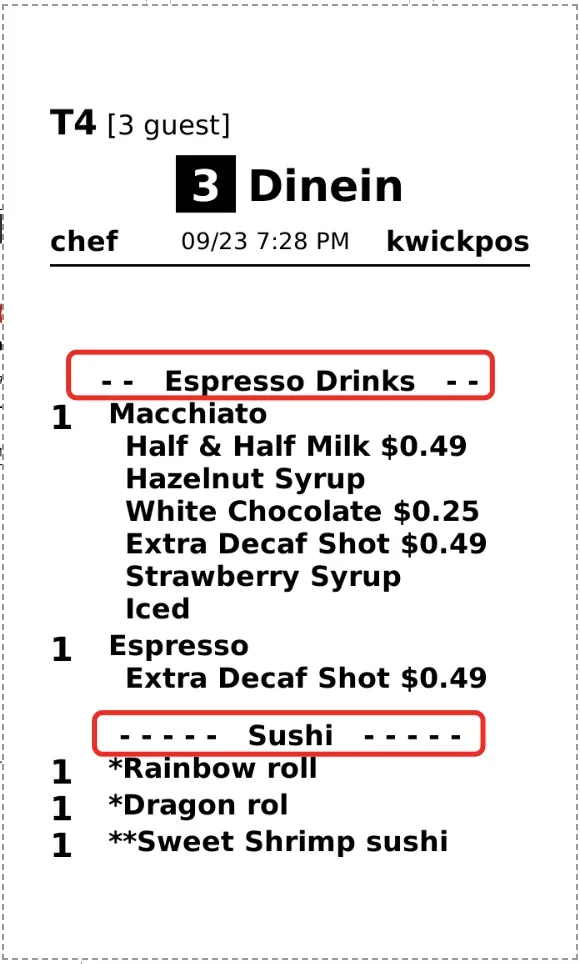
- In the new version, kitchen tickets can display category names and sort items based on the display order of categories. This helps improve order management for void, add, update, and modify ticket operations. This feature can be configured under Setup > Orders > Printing > Sort Kitchen Tickets by Category and Print Category Name. [Ticket # 355745]
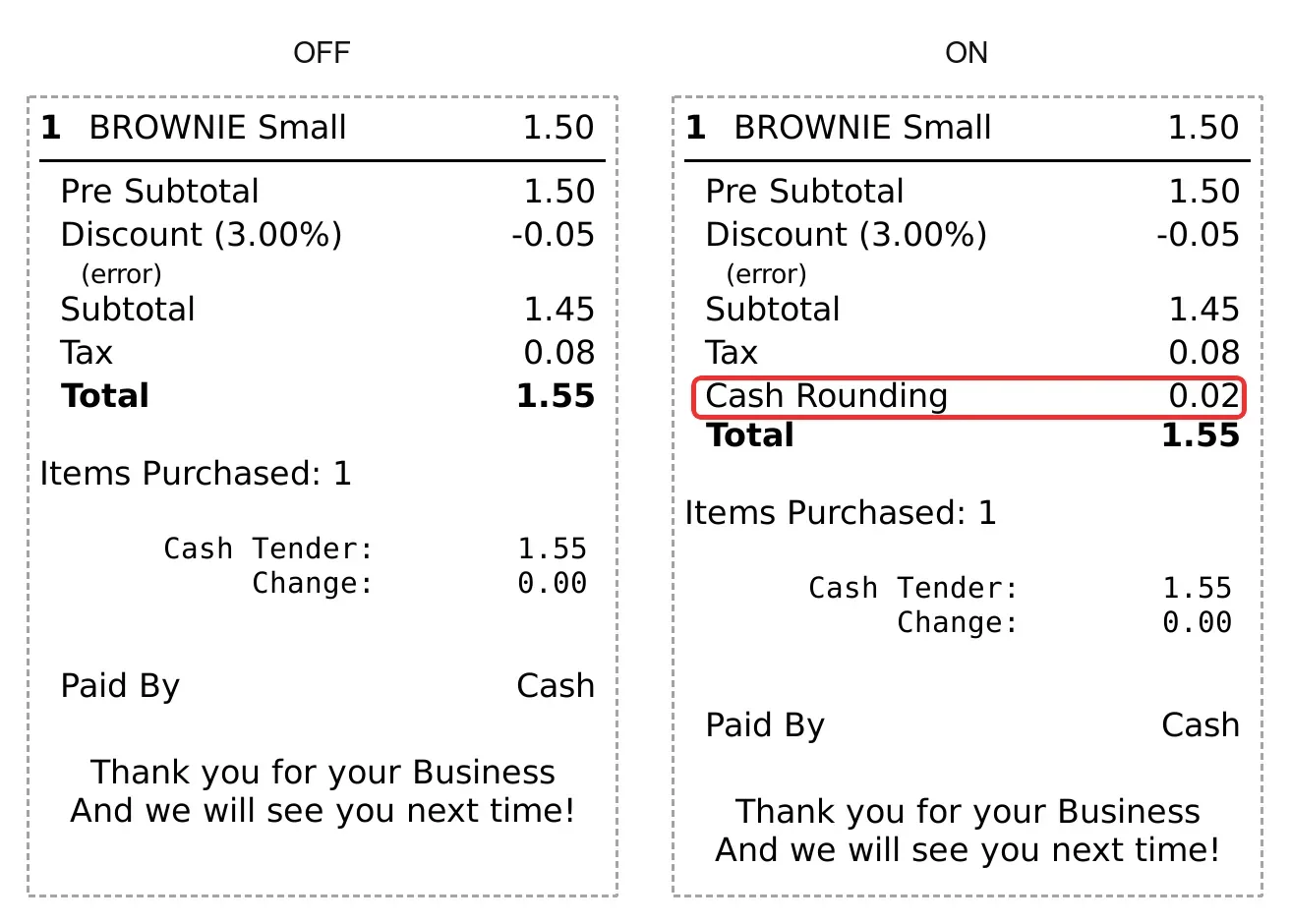
- In the new version, cash payment receipts can display the cash rounding adjustment before the total when cash rounding is enabled. This helps customers clearly see the rounding amount. This feature is available for printers using New mode and can be configured under Setup > Orders > Printing > Show cash rounding on receipt. [Ticket # 340090]
Payment:
- In the new version, Surcharge Collected By CC Machine now supports Dejavoo devices. This feature can be configured under Setup > Payments > Credit Setting > Surcharge Collected By CC Machine. Previously, this setting was only available for Pax.
Report:
- In the new version, users without Report permission are no longer allowed to print the Order Summary from the Order Detail page. Only users with Report permission enabled can see and use the Print function for the order summary. Configure at: Employees > Users > Report.
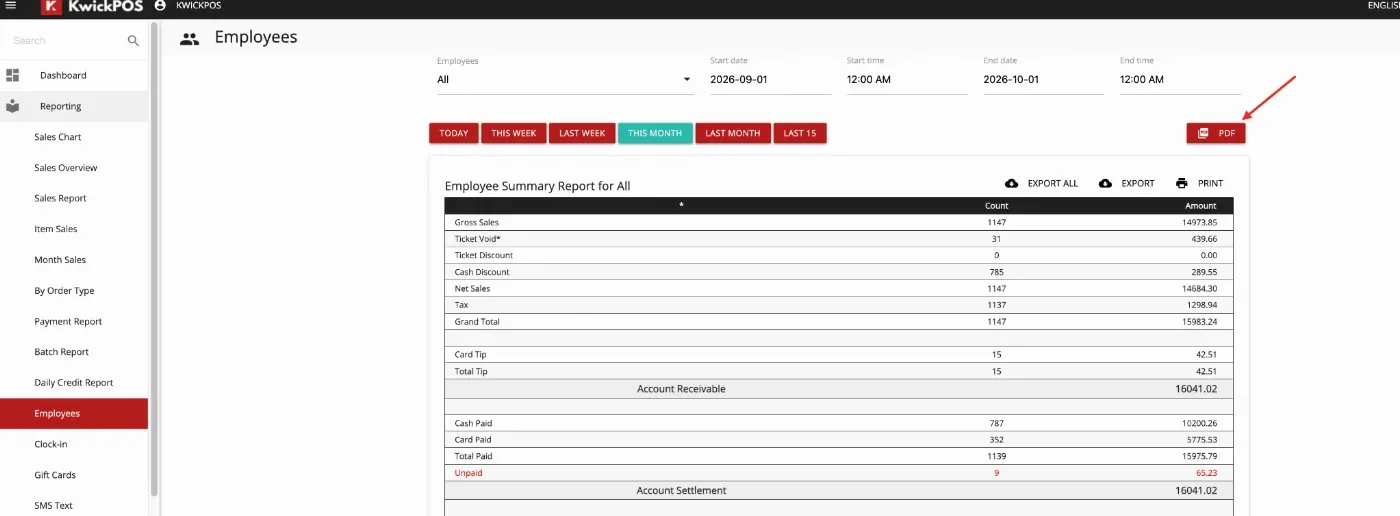
- In the new version, we added a Print PDF button to the Employee Report so users can save the full report page as a pdf.
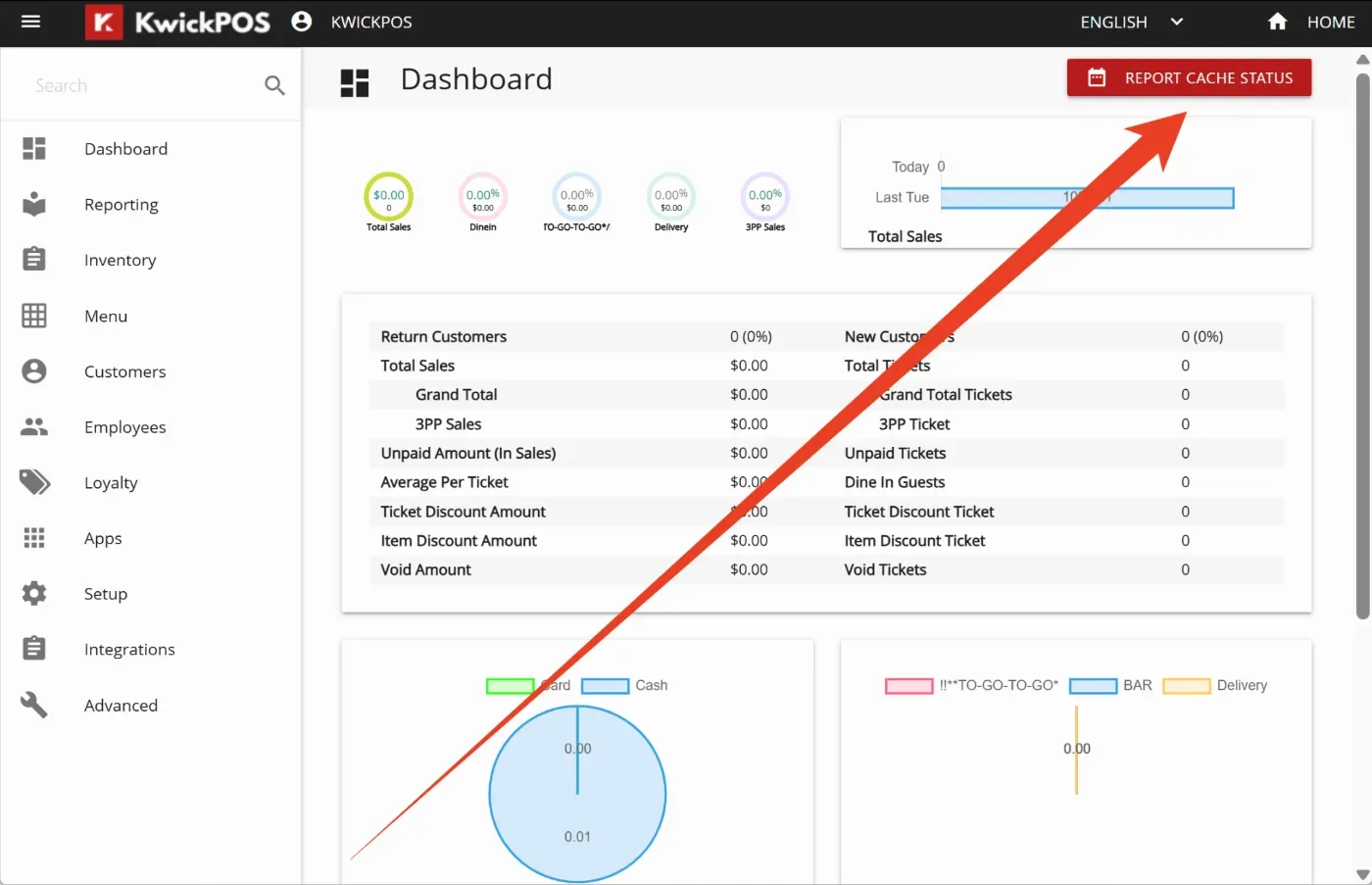
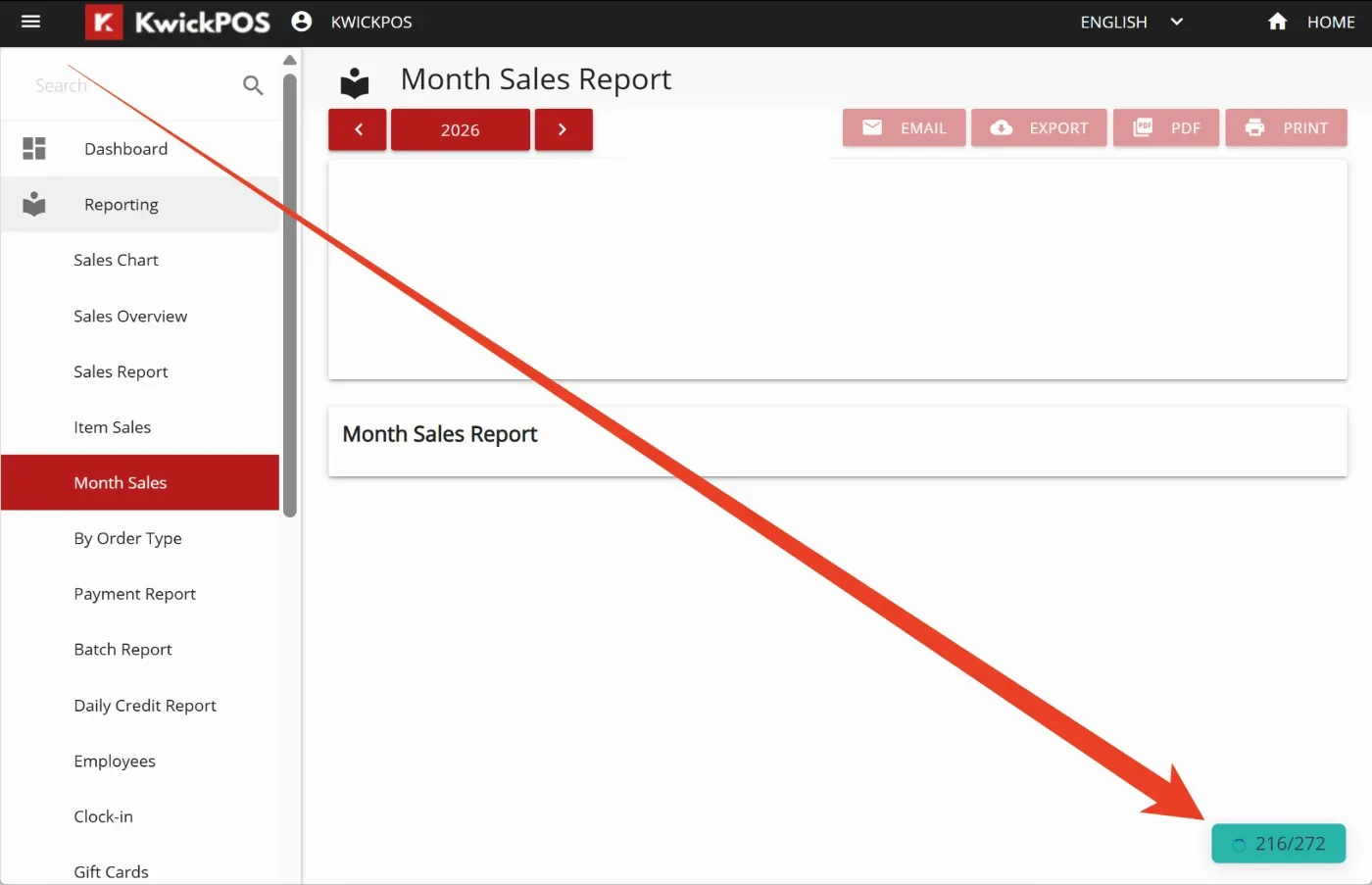
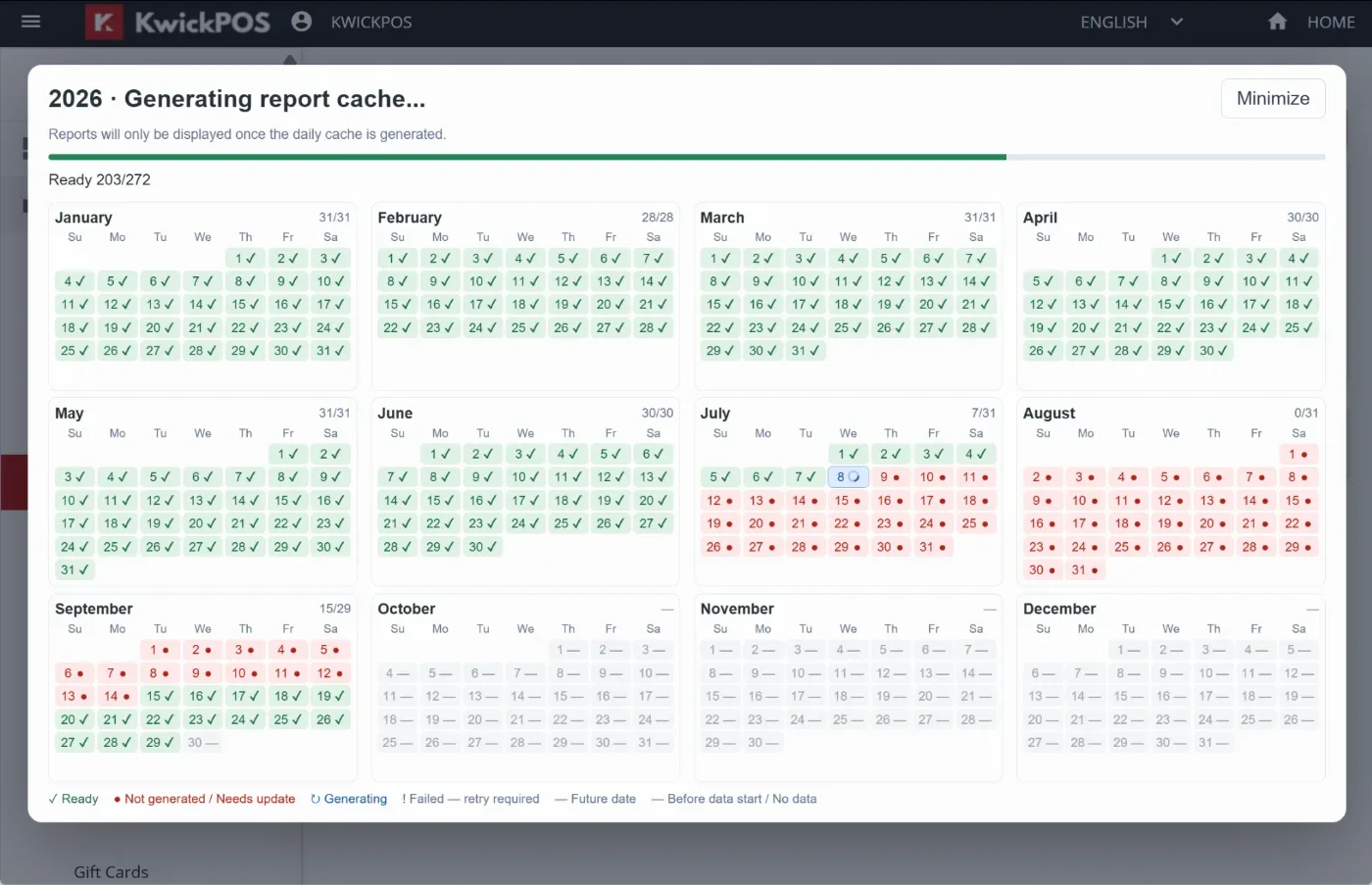
- In the new version, we added the Report Cache Status button in Back Office > Dashboard. The pop up page will show the current status of report cache and allow users to choose specifically how many days of cache to clear.
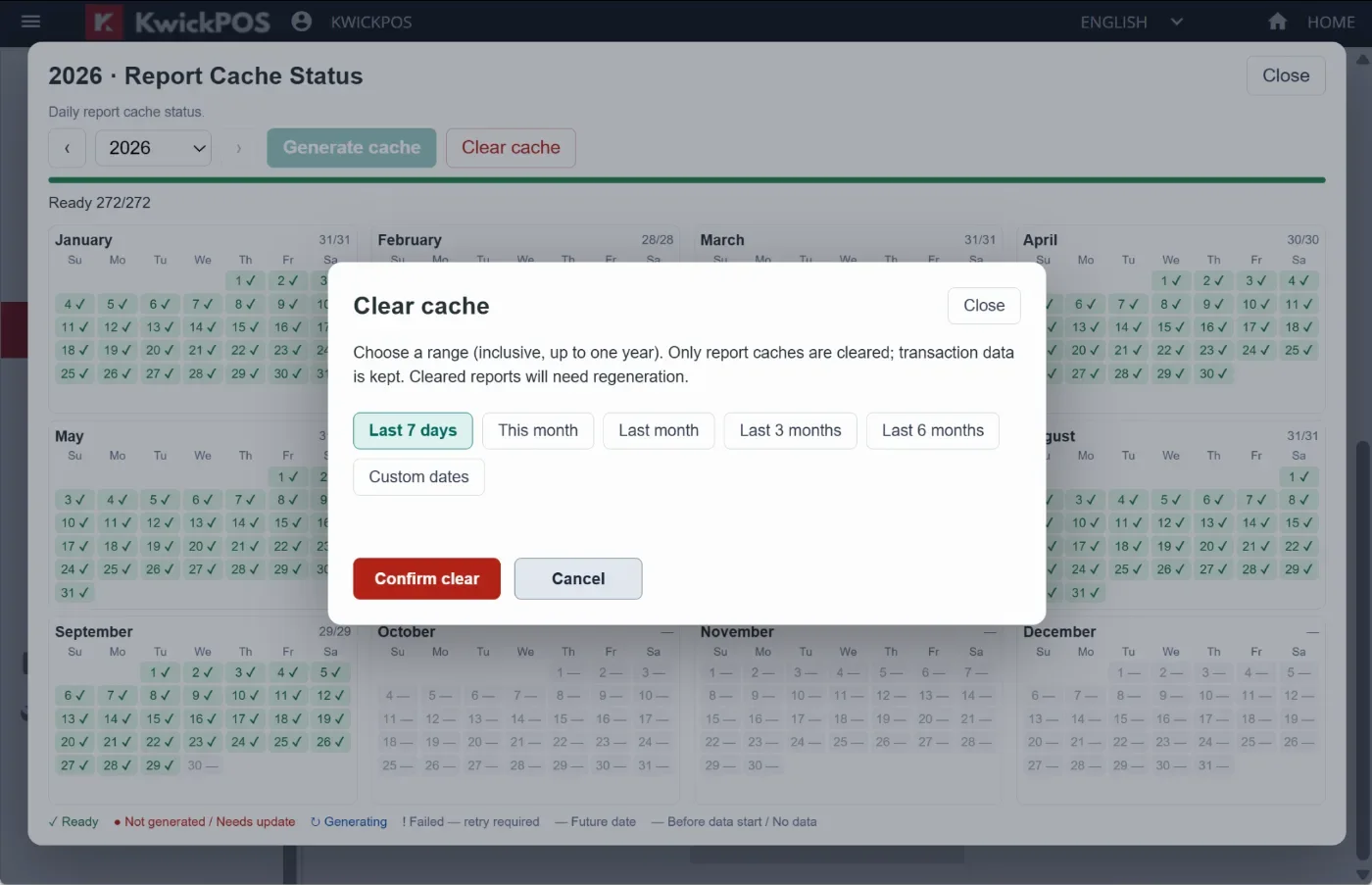
- In the new version, when checking Month Sales report or By Order Type report, if the report cache has not been generated, the system will automatically generate a report cache for the current year and pop up the Report Cache Status page which dynamically displays the progress. Users can also minimize the window.
- In the previous version, exporting customer information to an Excel file could insert blank lines after each record. In the new version, this issue has been fixed so customer exports no longer include extra blank lines.
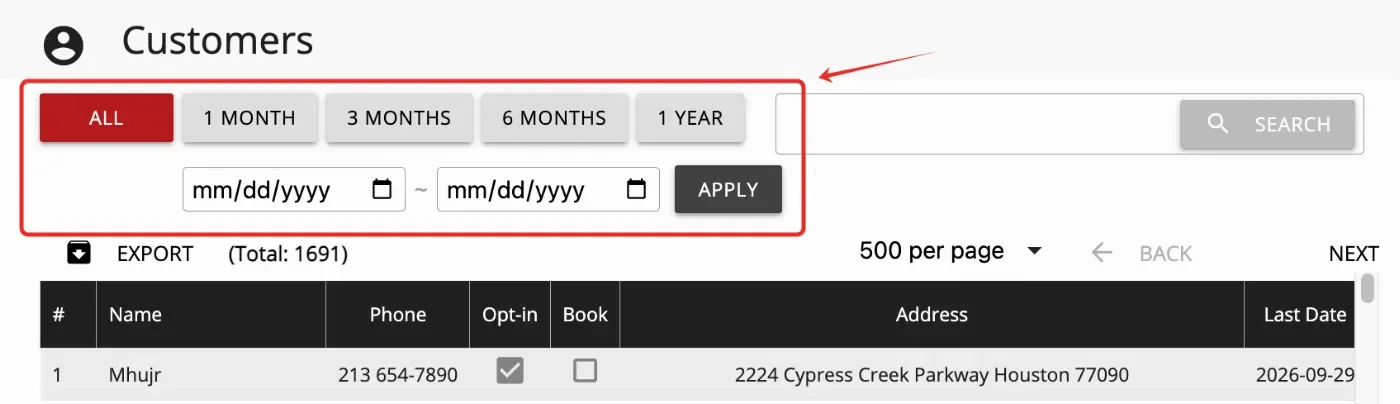
- In the new version, a last visit date range filter has been added to the Back Office > Customer page. Customer exports will also apply the selected date range, allowing users to export only customers within the chosen last visit date range. [Ticket #350040]
New Handheld:
- In the new version, New Handheld mode has been introduced. To use New Handheld mode, set Setup > Terminal > Terminal Mode to New Handheld and enable New Handheld Style under Setup > Mobile Devices.
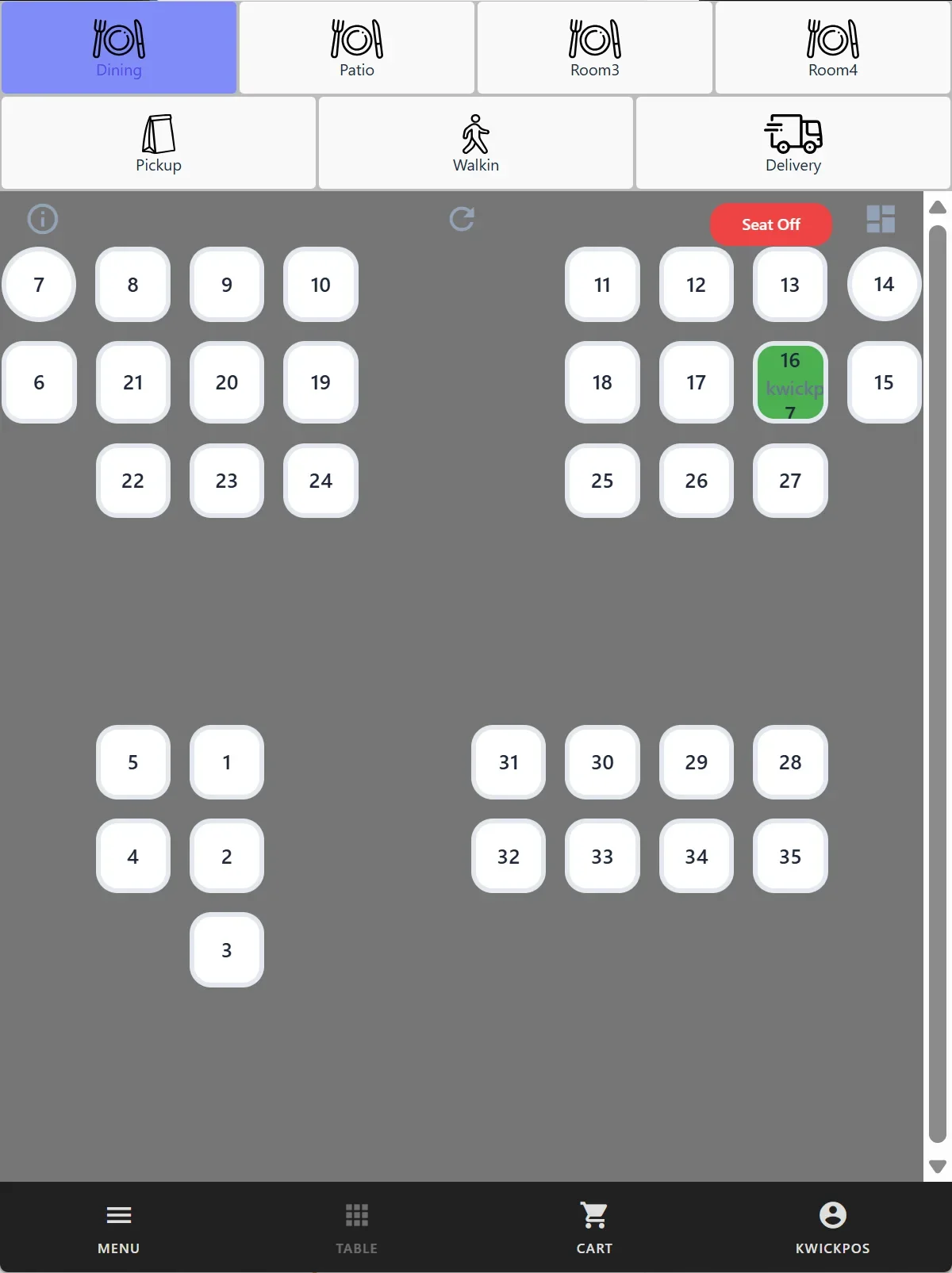
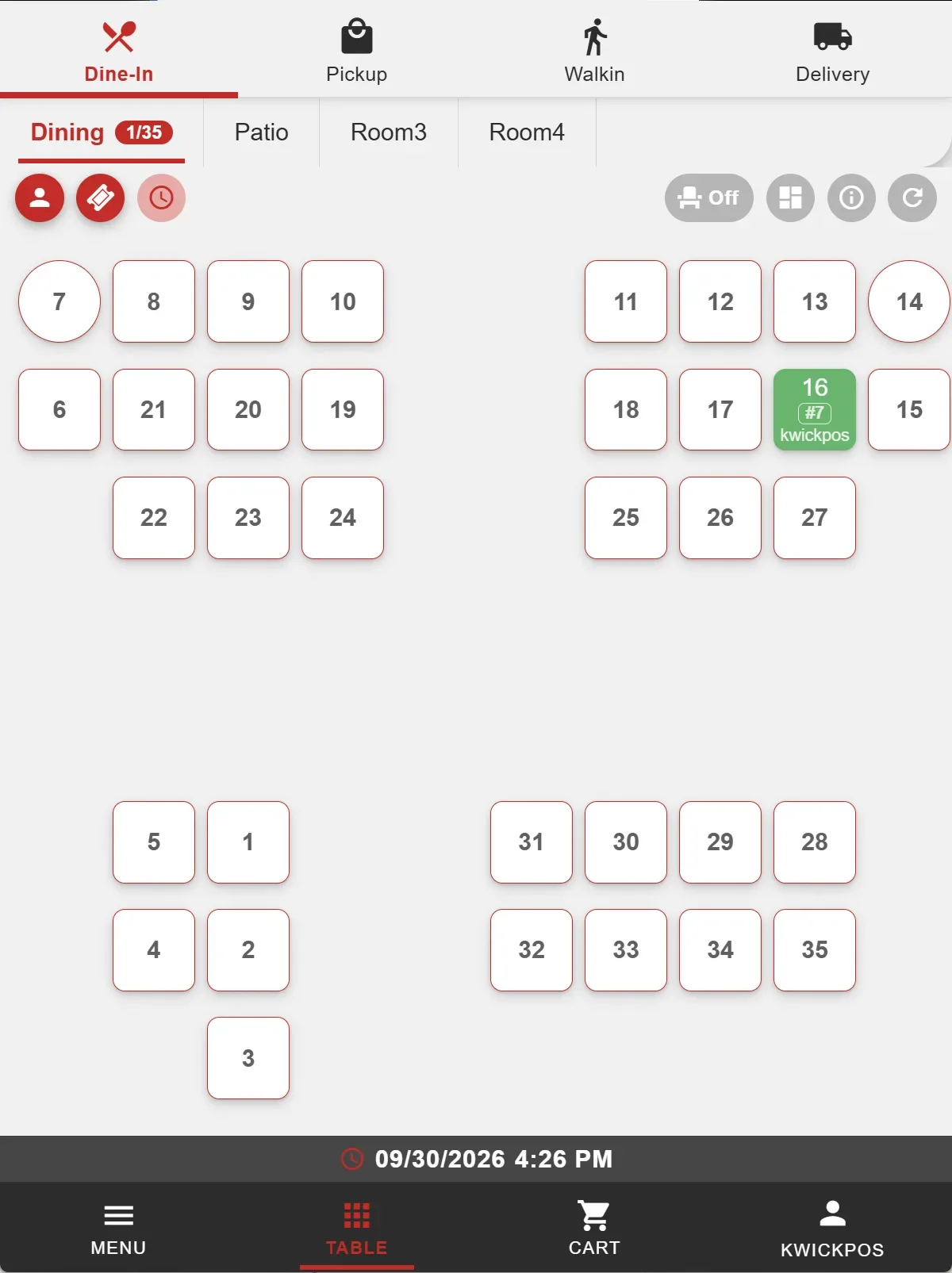
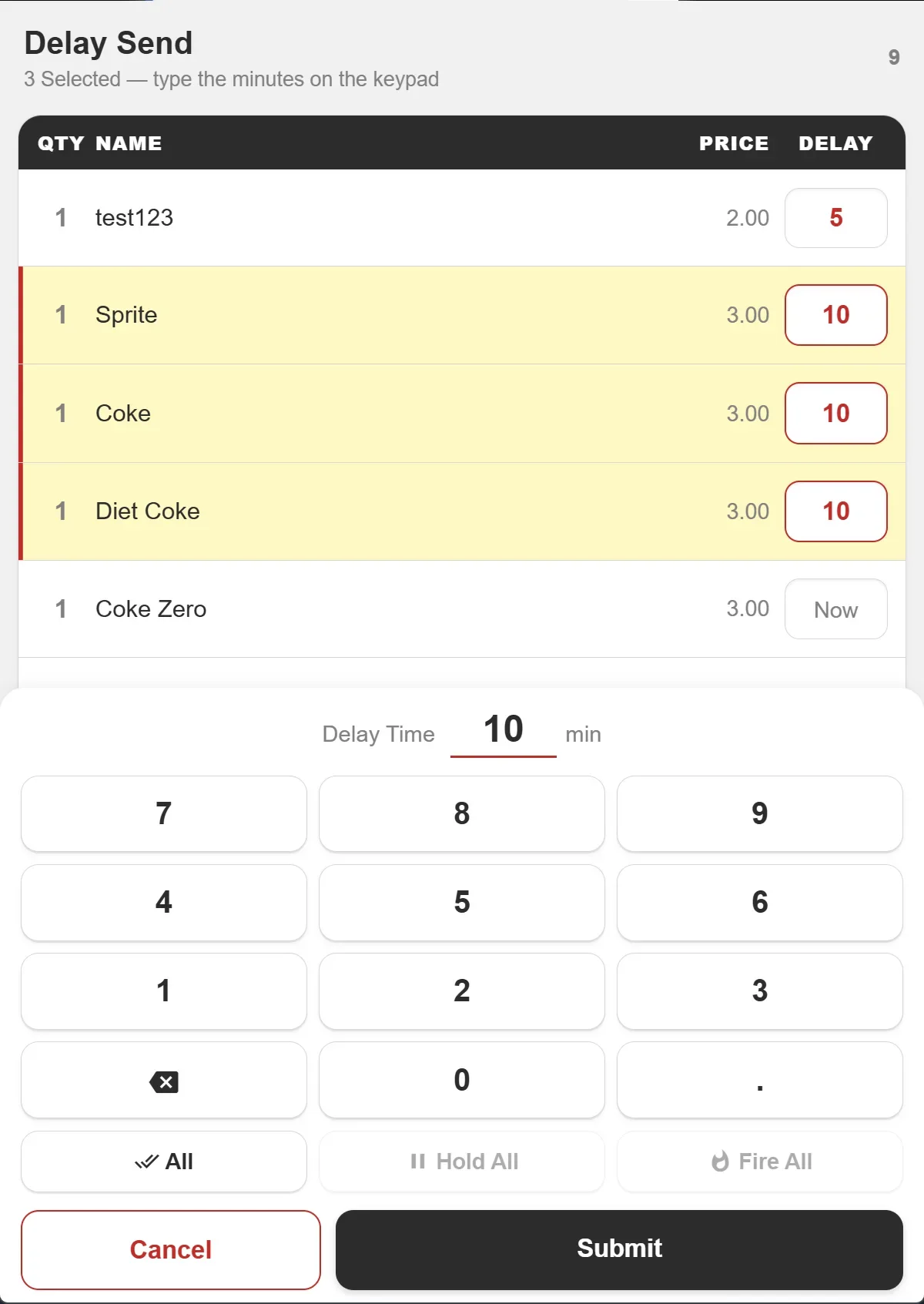
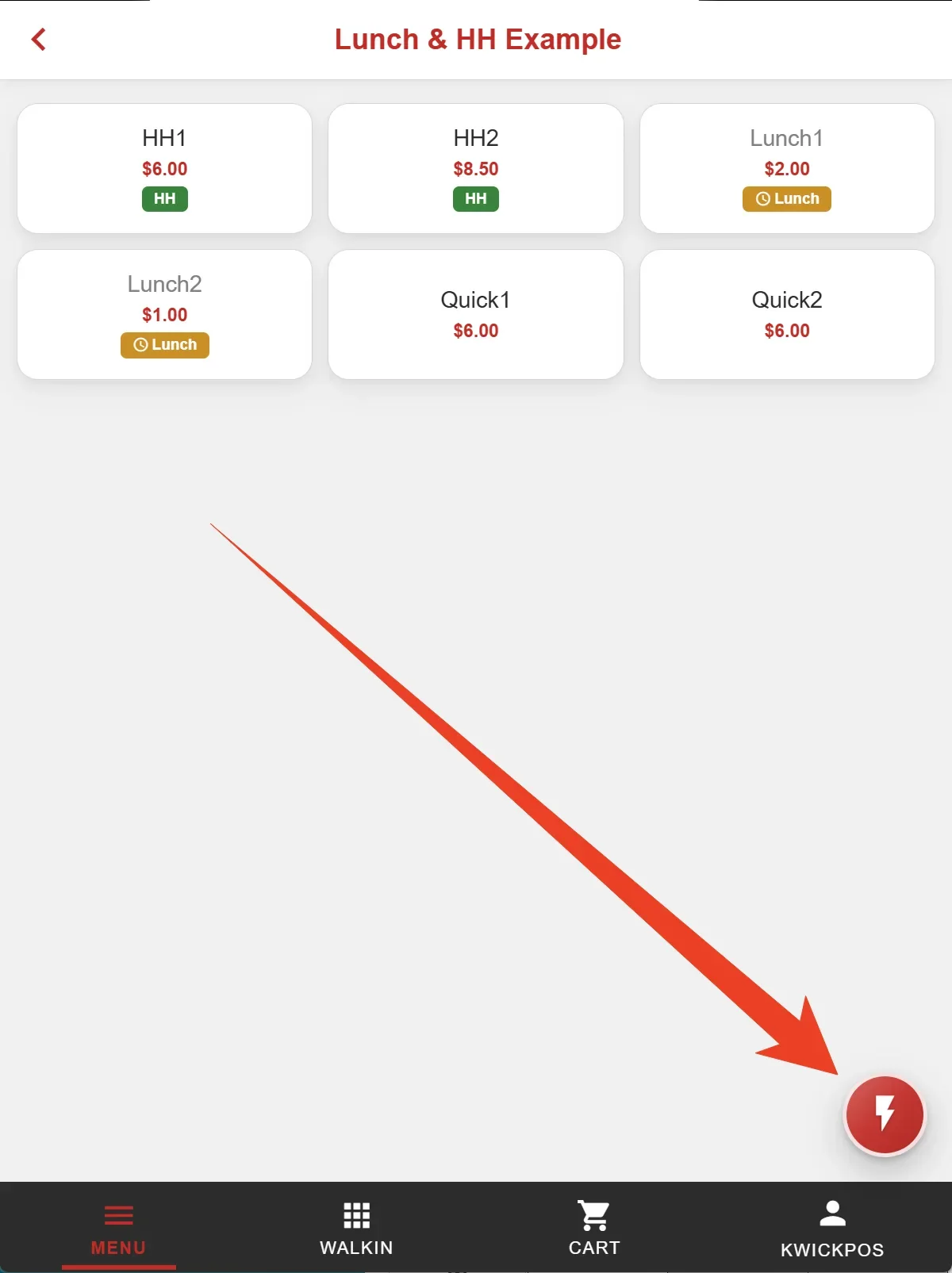
- The new handheld mode supports ordering functions including delay send, quick menu, happy hour, and expired menu. These follow regular settings in the POS. Seat mode and save orders can be configured by enabling ‘Enable seat for mobile’ and ‘Enable save order from mobile’ under Setup > Mobile Devices.
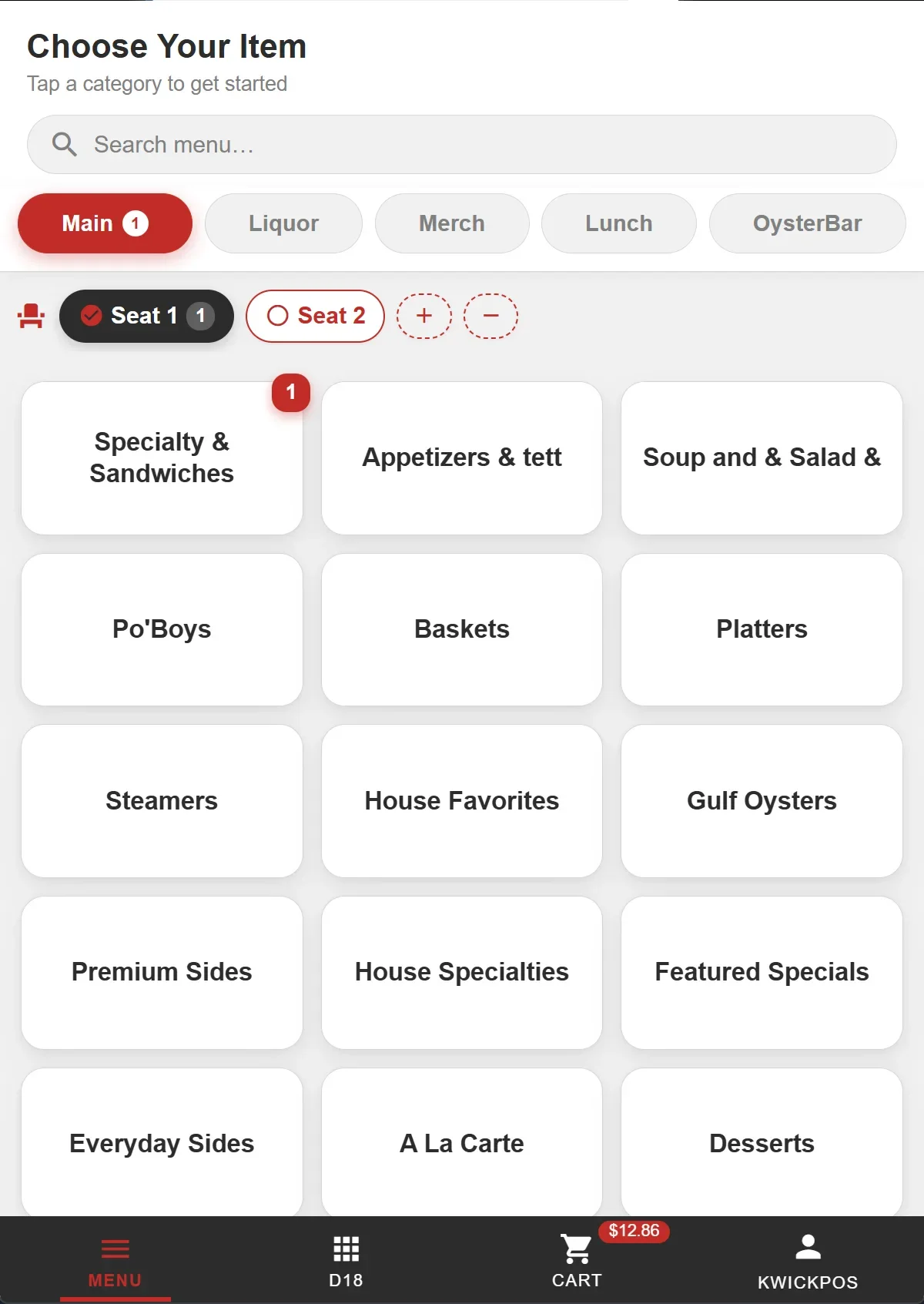
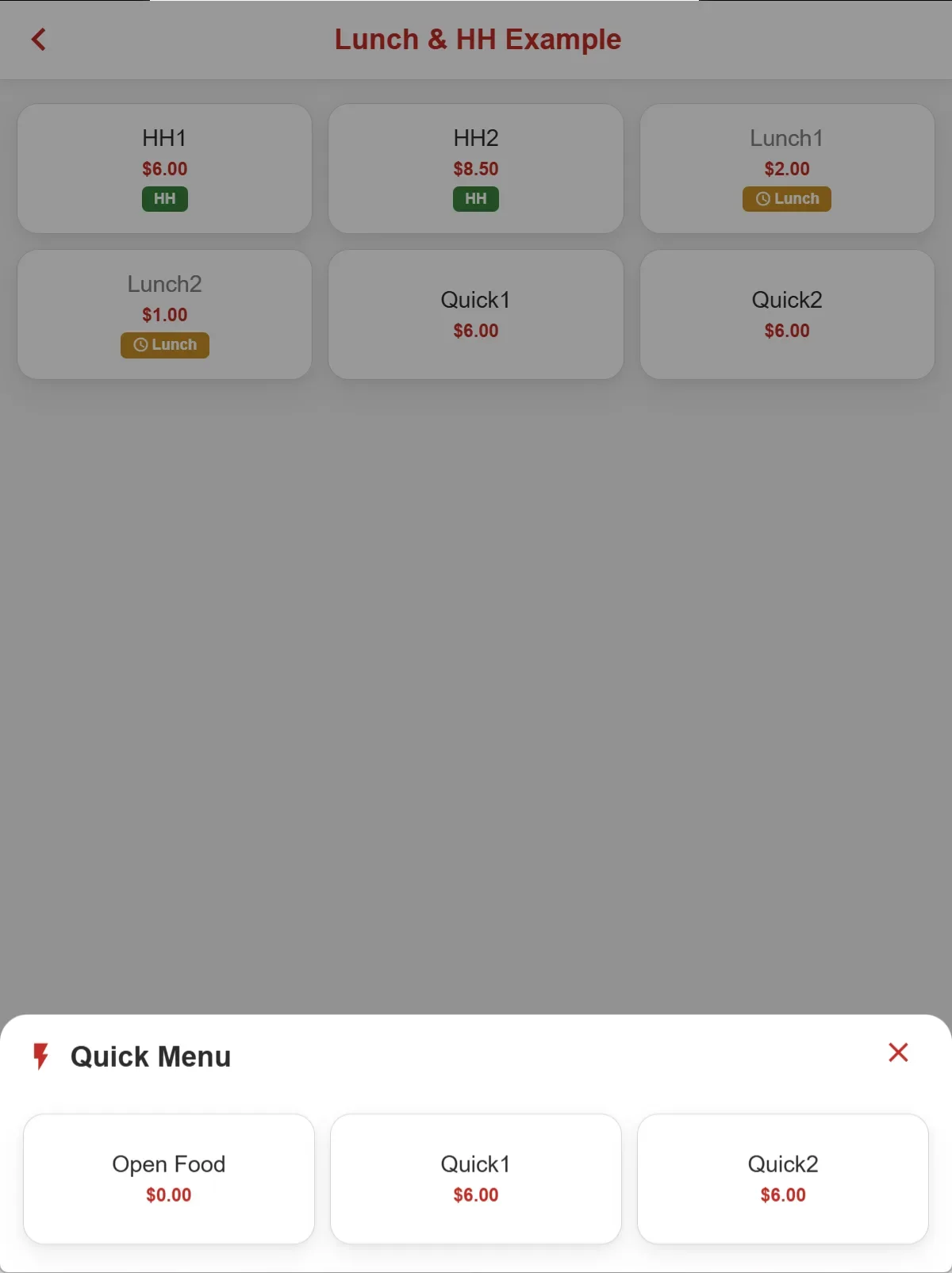
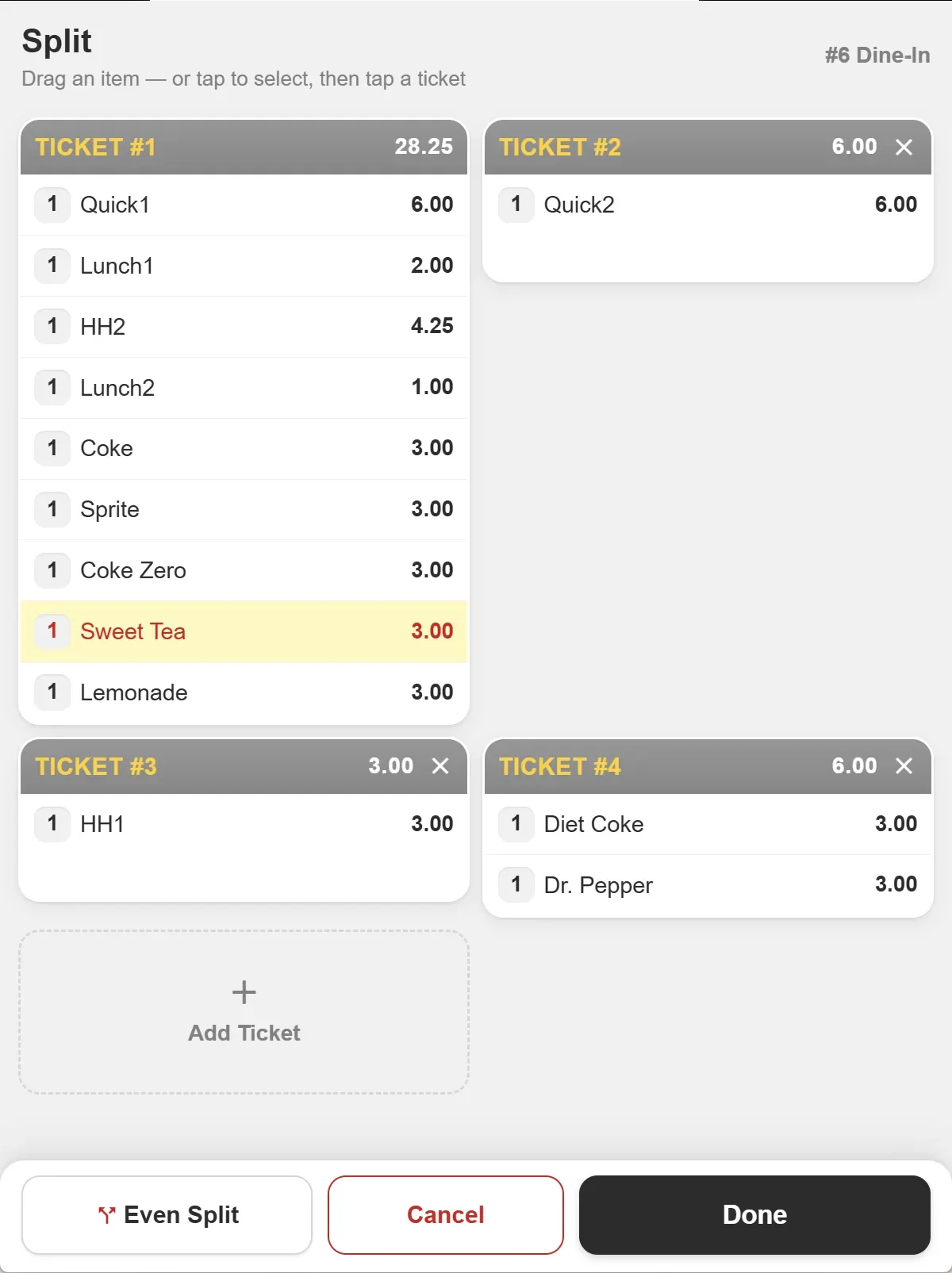
- The new handheld mode supports ticket and payment management functions including split ticket, ticket lock, ticket security, void payment and order, and add gratuity and tip. All user permissions followed the configuration in POS.
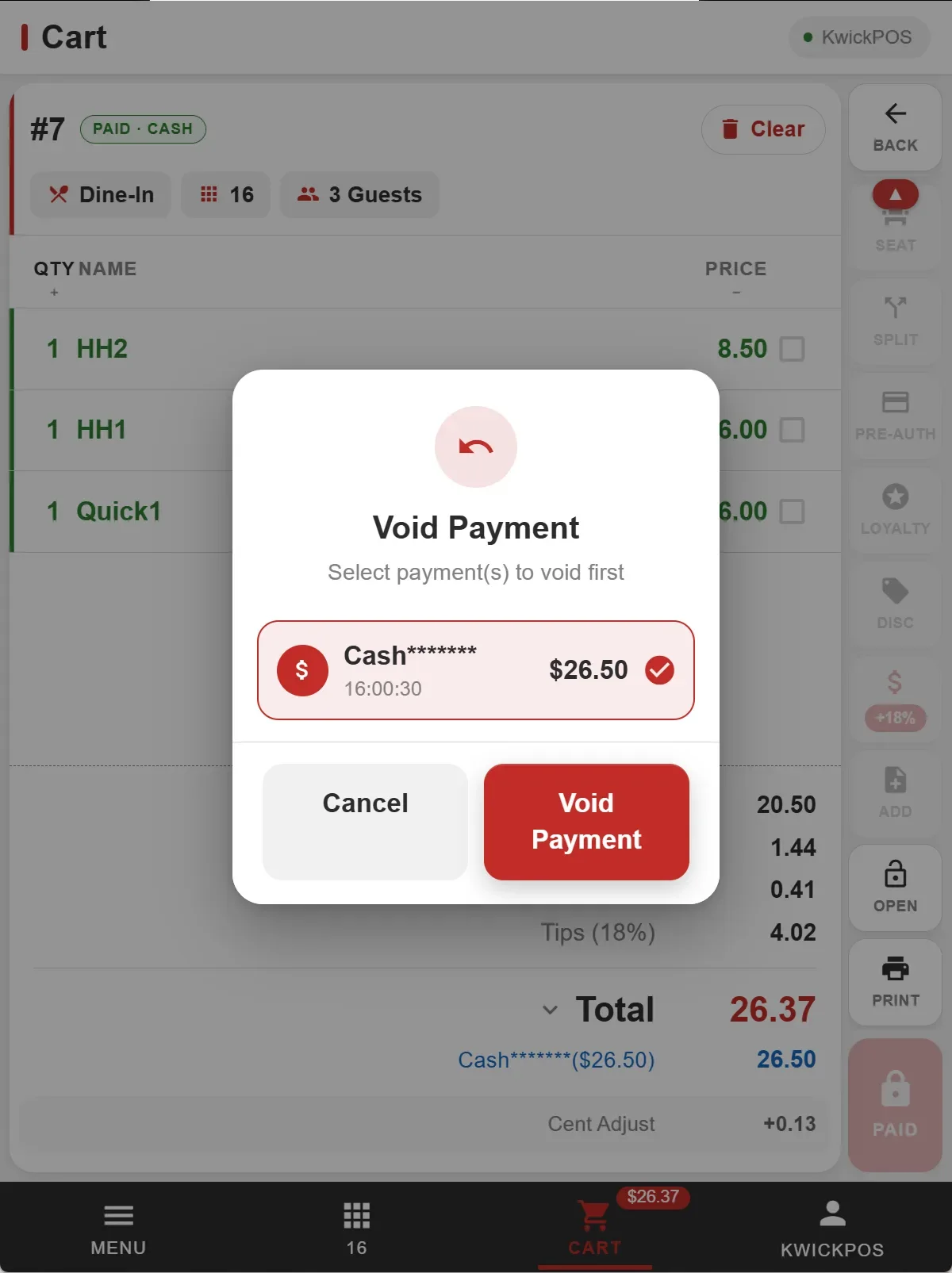
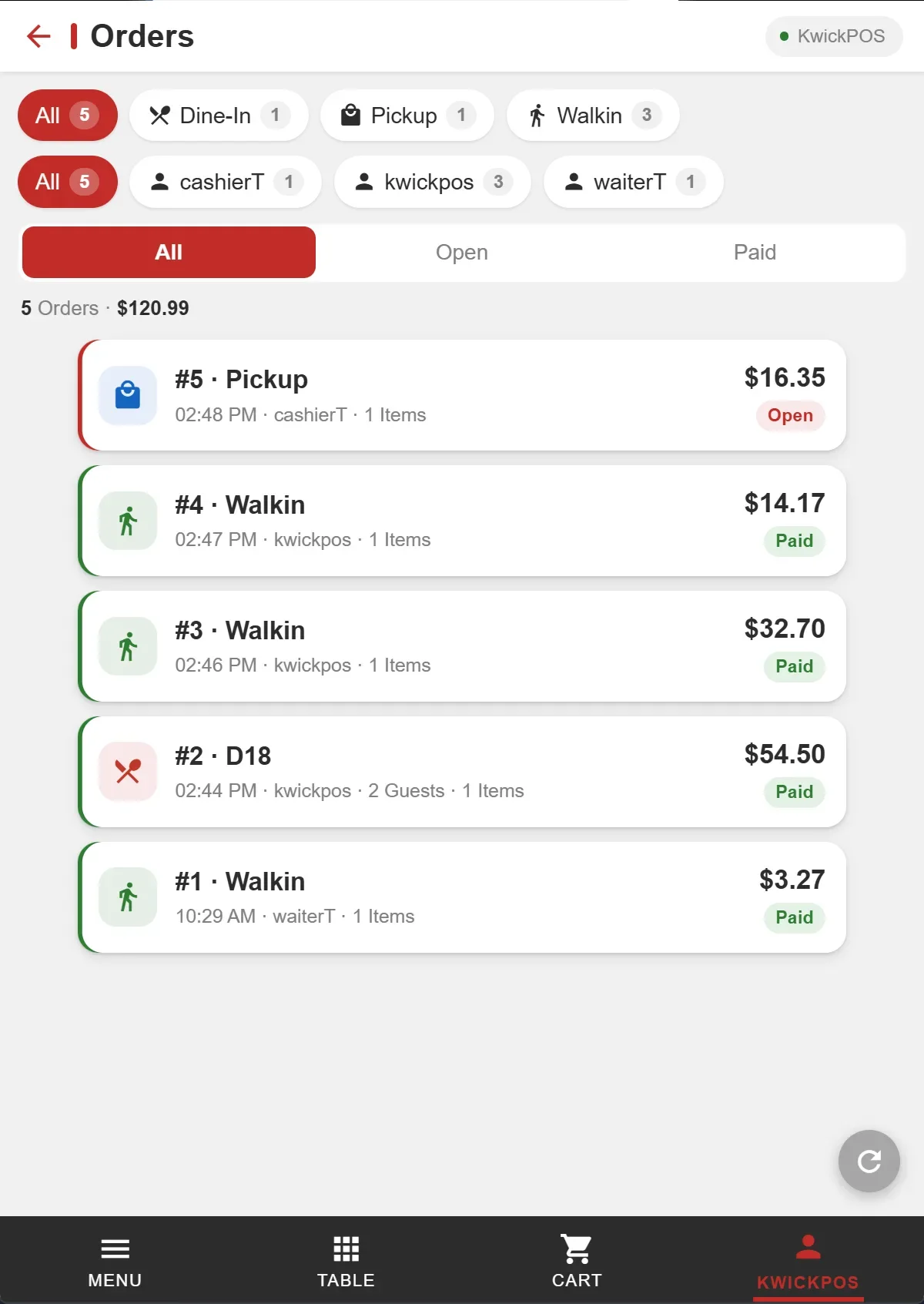
- Users can also access a list of all orders, saved orders, credit card transactions, and daily sales reports directly within the new handheld mode. This can be configured by ‘Get reports from mobile devices’ and ‘Enable Credit (Tip Adjust) on Handheld’ under Setup > Mobile Devices. All user permissions followed the configuration in POS.
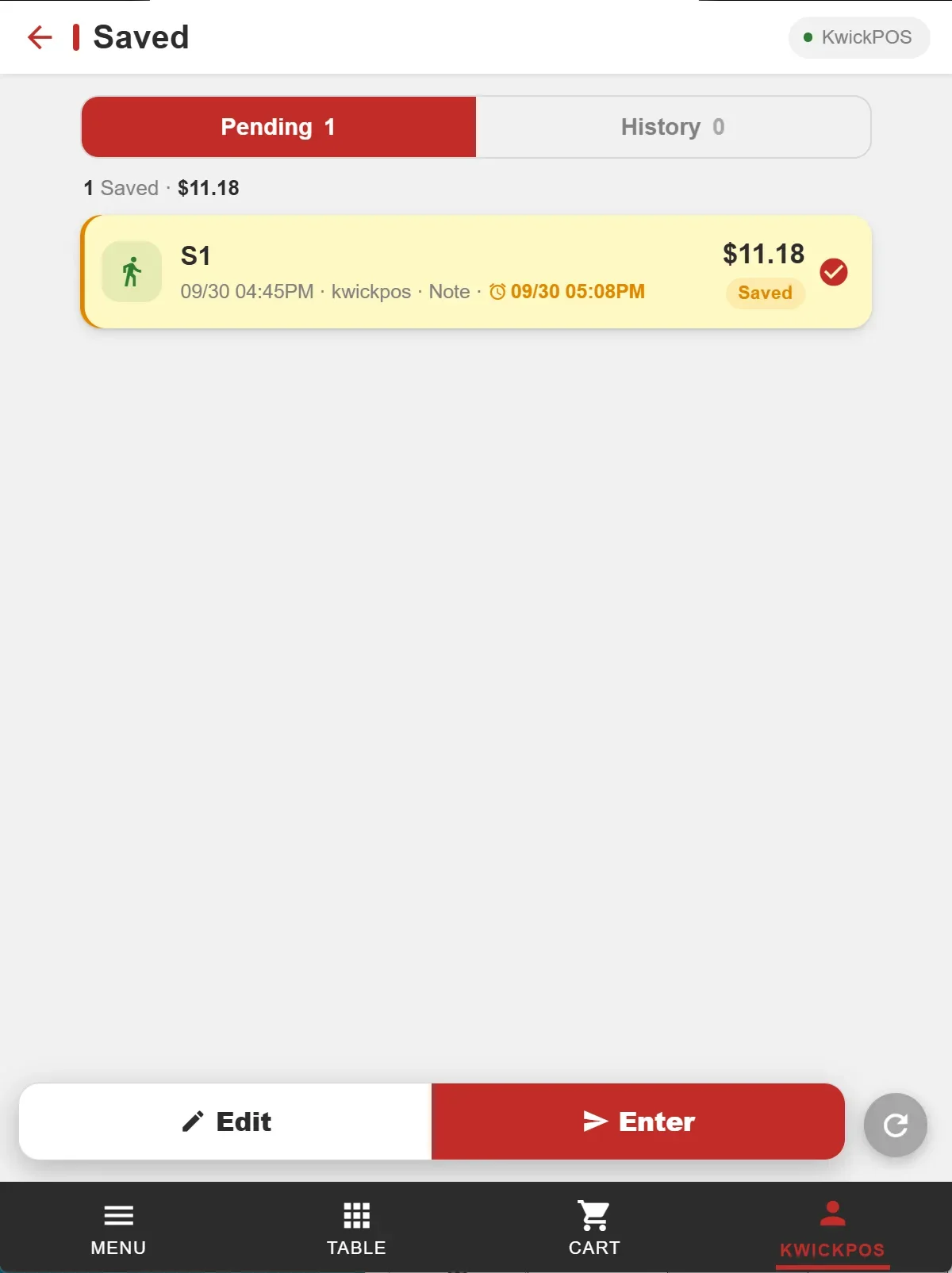
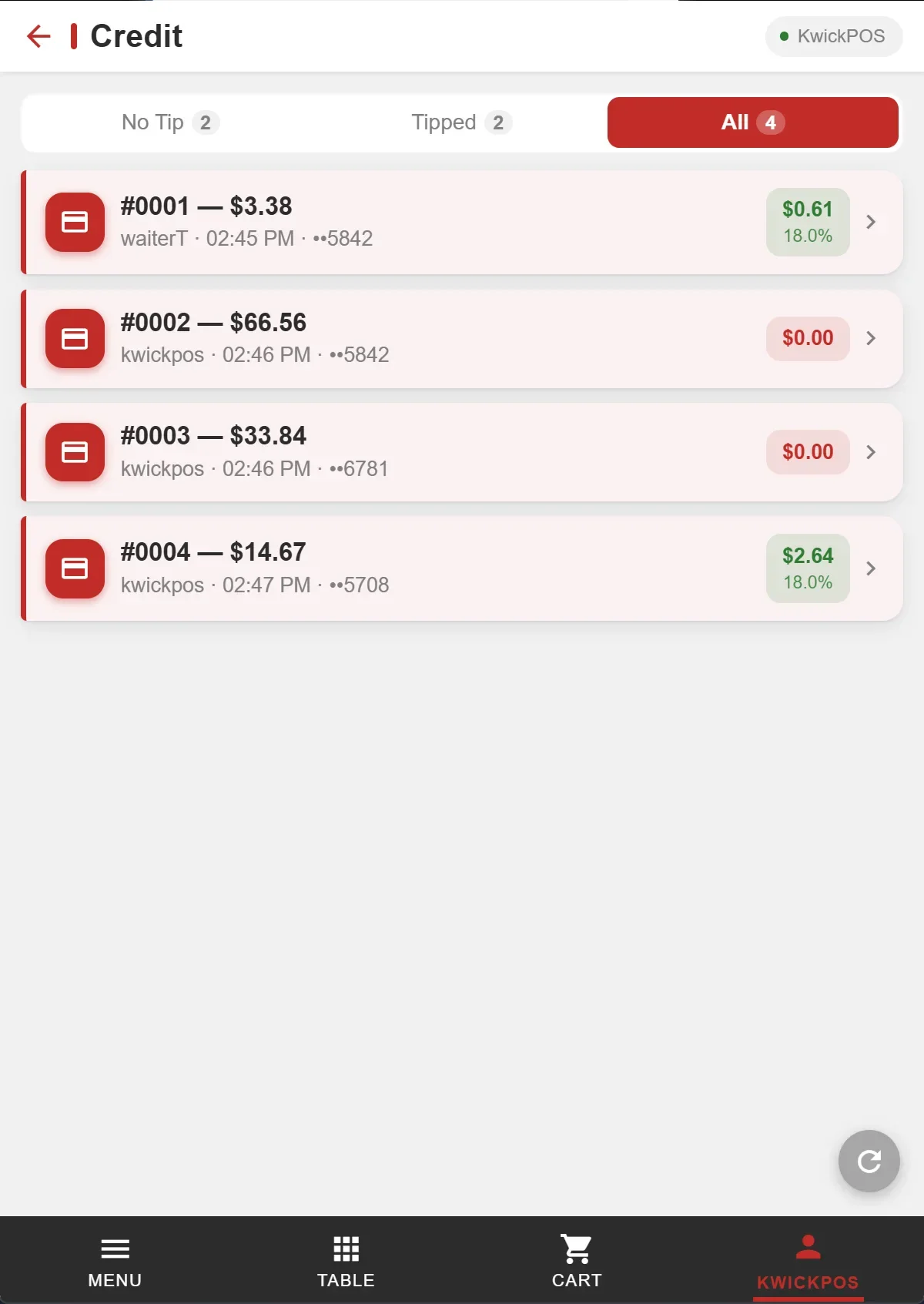
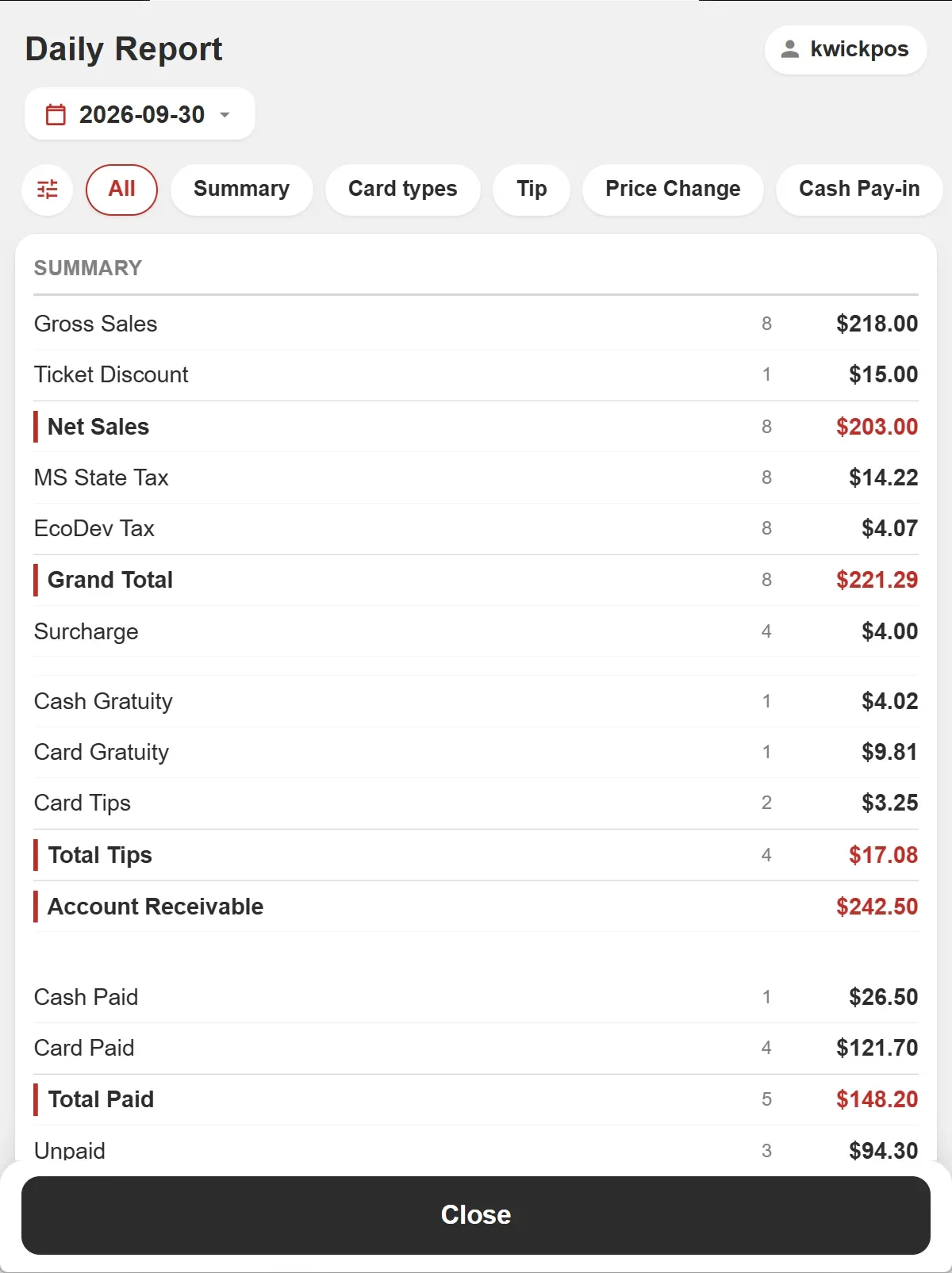
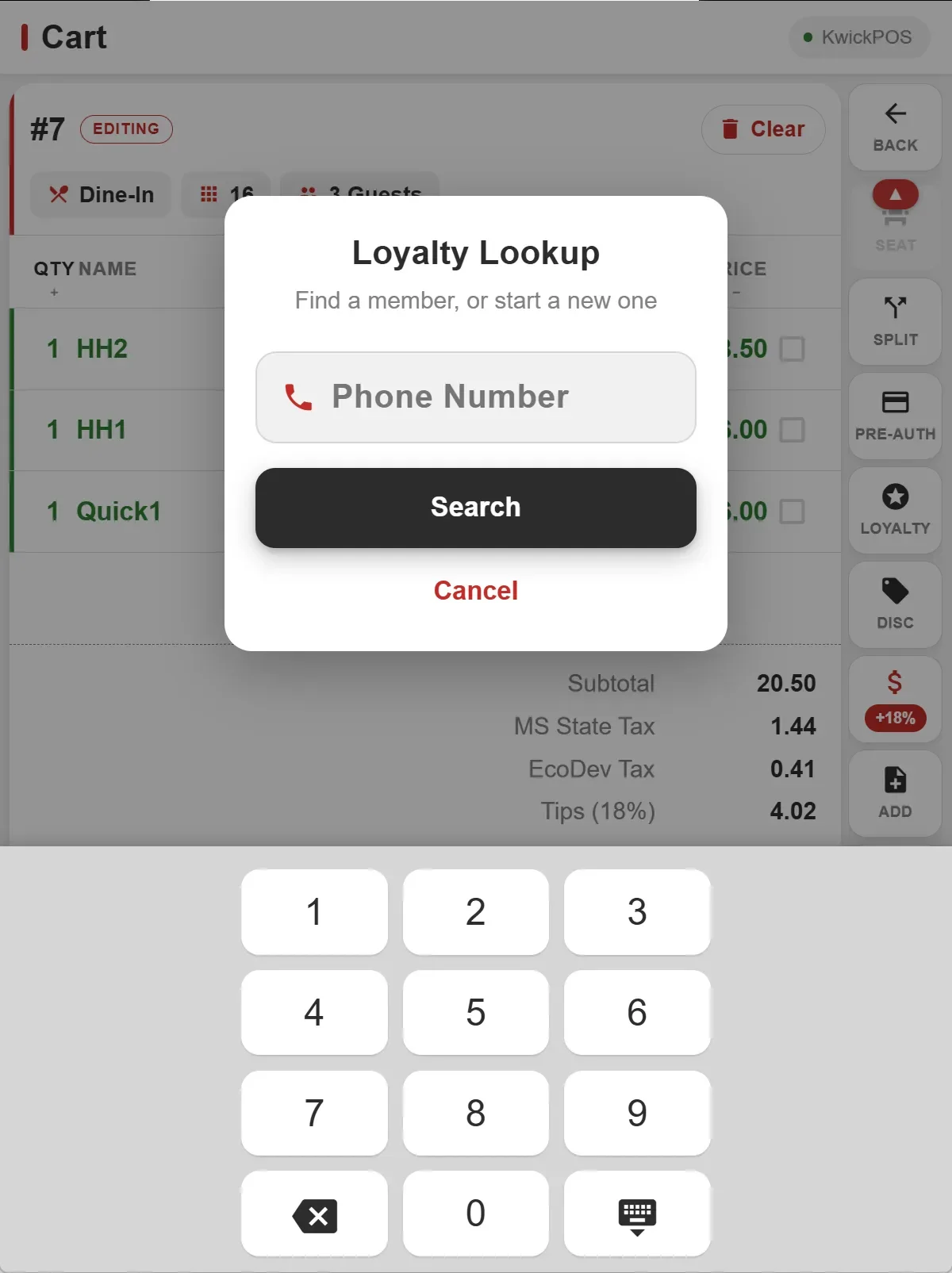
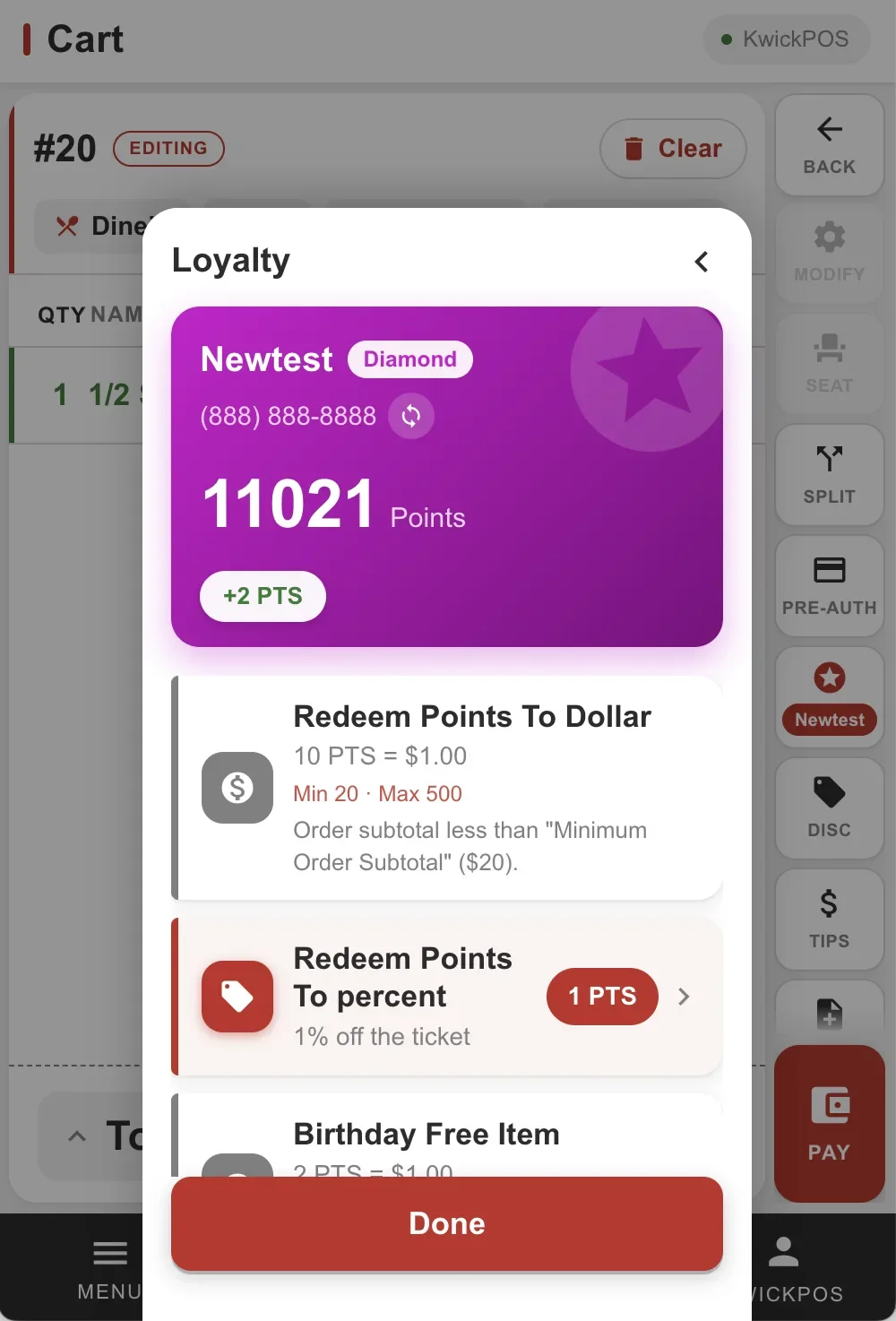
- The new handheld mode also includes a loyalty feature. Users can look up a member or add a new member by phone. This can be configured by ‘Enable Loyalty on HH’ under Setup > Mobile Devices.
Other:
- In the new version, we added an option to change modifier font colors on KDS for better visibility. Configure at: Setup > Orders > KDS Setting > KDS Font Colors. [Ticket #354199]
- In the new version, Sunbay Keyin payment is supported with TSYS Multipass. Merchants can configure the Merchant ID and choose whether to ask for the billing address on the Keyin payment page. Configure at: Setup > Payment > Credit Setting > Sunbay Gateway Setup.
- In the previous version, Magtek Void and Recharge could not work on orders if paid first was not enabled. In the new version, this issue has been fixed.
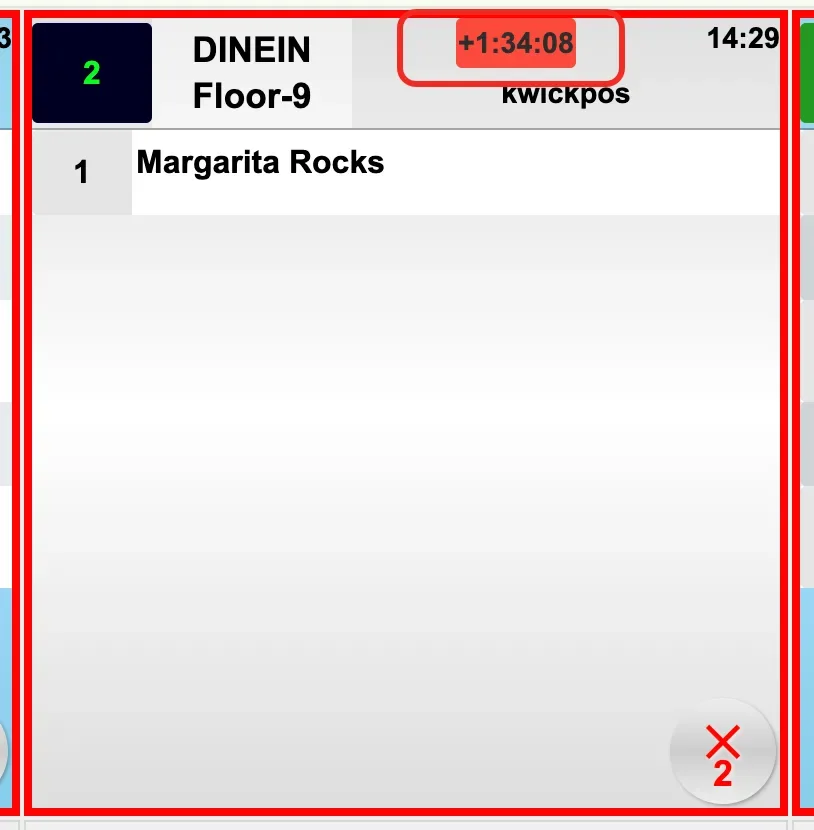
- In the new version, we added an option to hide the “+Time” display on the Kitchen Display System (KDS). Configure at: Setup > Orders > KDS Setting > Show KDS elapsed time (+time). [Ticket #354498]
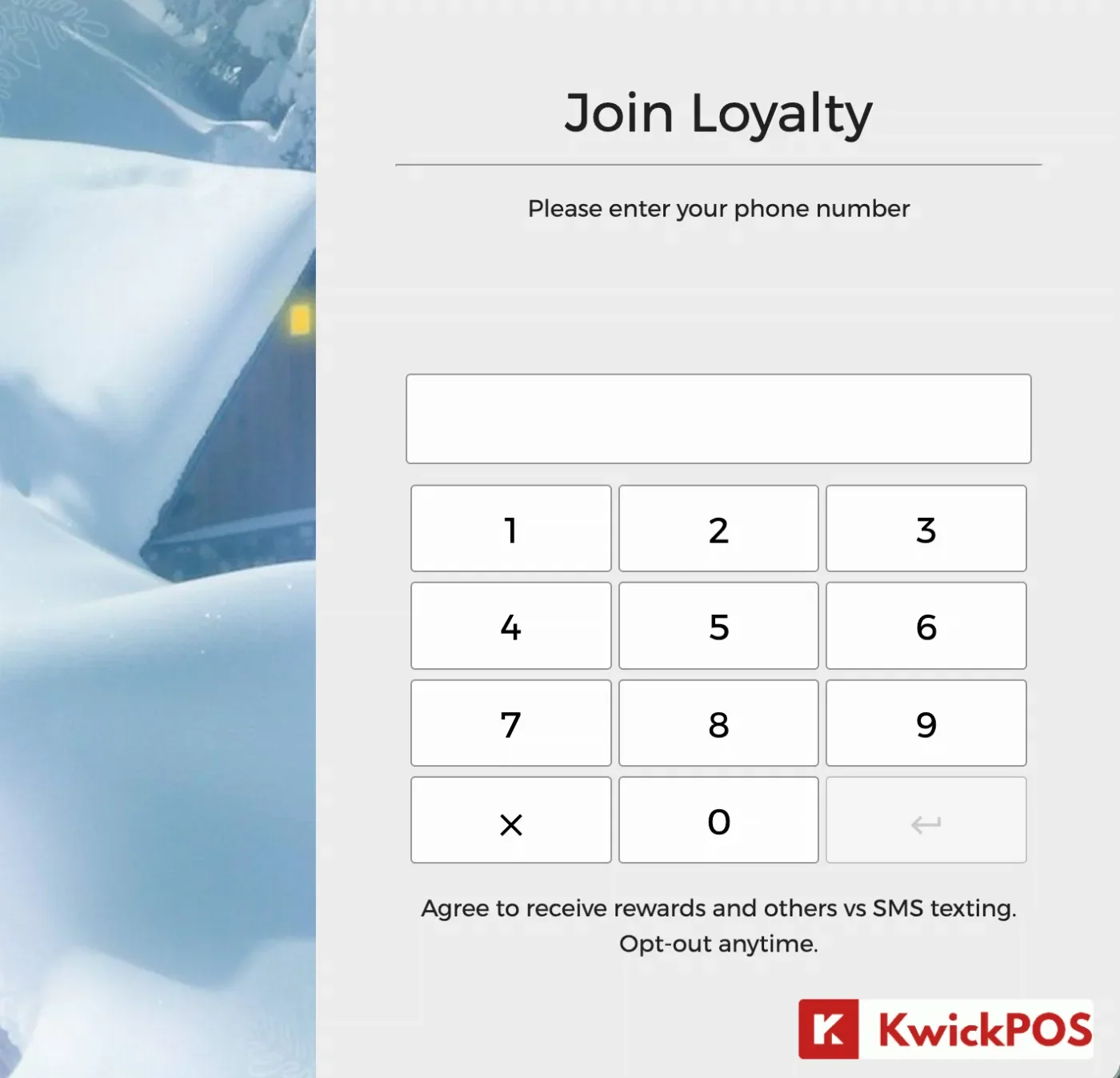
- In the new version, a new option was added to hide the Join Loyalty phone number prompt on the Customer Display Screen (CDS) idle screen without turning off the loyalty program. Configure at Orders > Misc > Hide the Join Loyalty phone prompt on the customer display idle screen. [Ticket #339284]
- In the new version, a new option was added to the Tablet Mode to hide the checkout button. Configure at Apps > Tablet Ipad > Checkout Button (New Tablet).
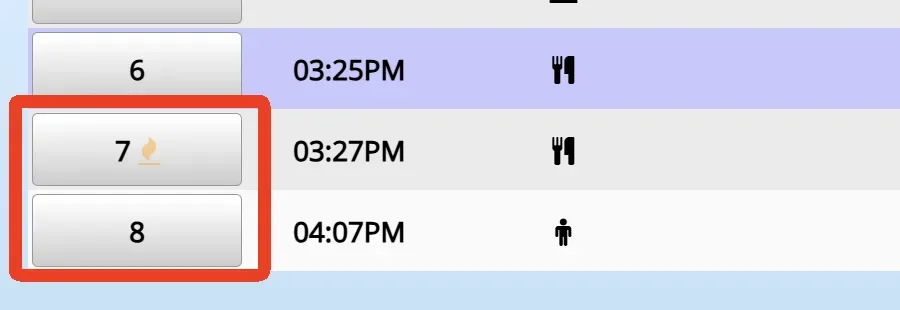
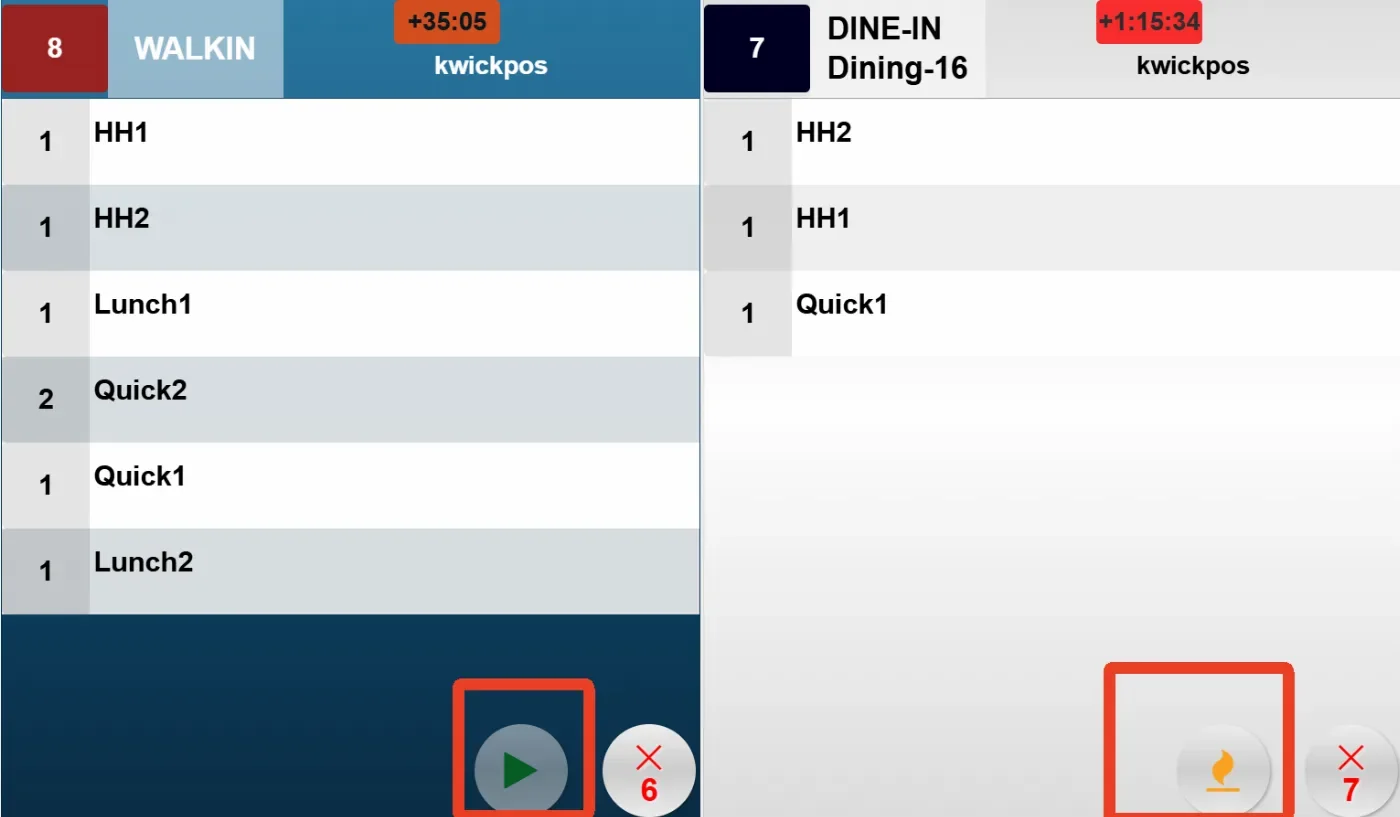
- In the new version, we added KDS status visibility on POS terminals and handheld devices, showing the status icon next to the order number. Configure at: Setup > Orders > KDS Setting > Show KDS Start button.
Online:
KwickMenu.com:
- In the new version, customers can redeem their available Chain Loyalty points when placing orders online.
Still need a hand?
Our 24/7 support team can walk you through it.
Call (888) 355-6996